Preface
In testers’ work, finding Bugs relies more on exploratory testing of the application.
And during the exploration of an application, filling test data into forms is a very high-frequency operation. Preparing test data of various equivalent or boundary values and filling it in quickly is an indispensable action for testers when verifying and exploring features. But preparing large amounts of data, making it conform to the form’s own constraints, and at the same time filling it in quickly so the flow moves forward, actually takes up quite a lot of time during execution and hurts work efficiency.
In fact, the industry had similar tools quite early to help testing; for example, the website https://autotestdata.com/ can generate relevant fake data according to our needs, and test automation also has related fake libraries, such as Python’s Faker.
But this data generation still involves organizing requirements, generating data, copying data, and then filling it into the form, which is never quite smooth enough.
This article introduces a Chrome extension that can quickly bring up relevant data and fill it in as needed while you operate the form.
I believe it will be an important helper for us when doing page testing.
Extension Introduction
This Chrome extension is Auto Data Filter

Just find this extension in the Chrome web store and install it.
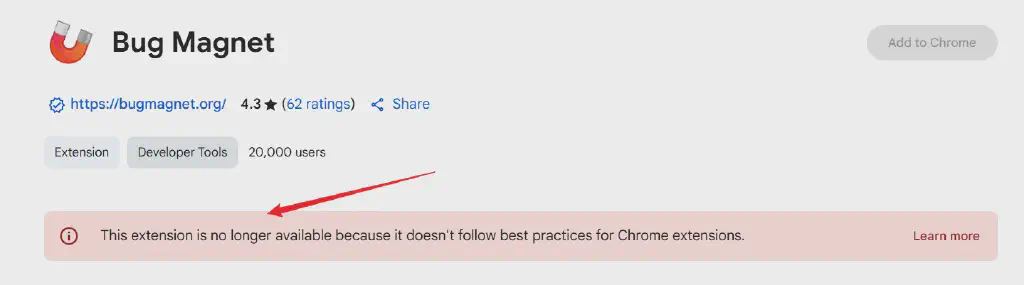
Also, from the extension’s name, you can tell it is actually a replacement for another extension, Bug Magnet. It’s just that the original extension stopped working and is no longer maintained.
It is very simple to use: in a form where you need to fill data, right-click to bring up the extension menu, select the corresponding built-in data, and it fills in quickly.
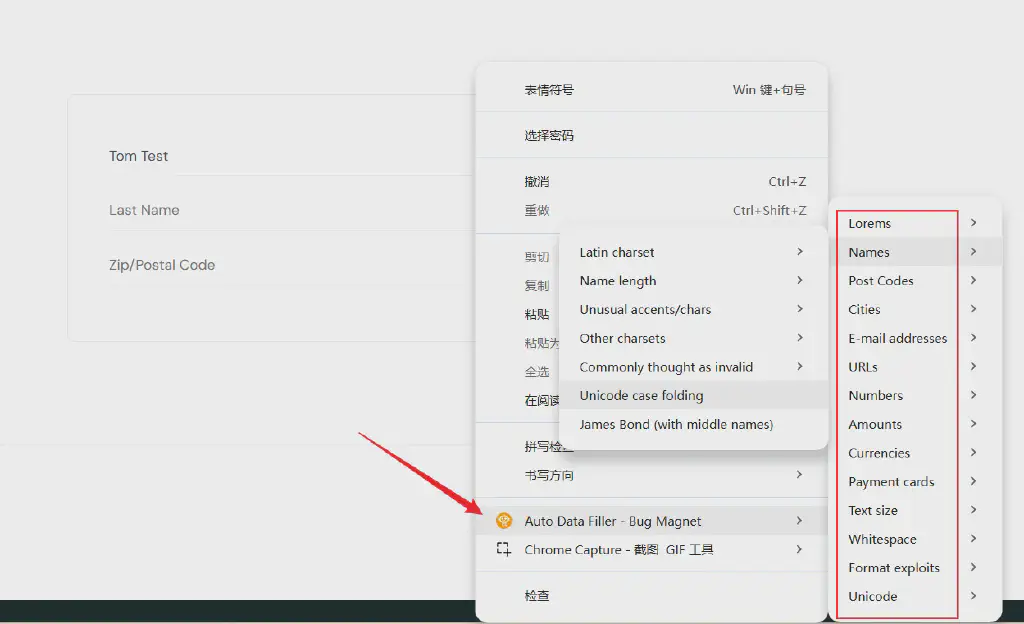
The usage is simple, but very practical.
Offline Installation
If you cannot access the extension store smoothly, you can also install it offline. Reply AutoData in our official account to get the offline package.
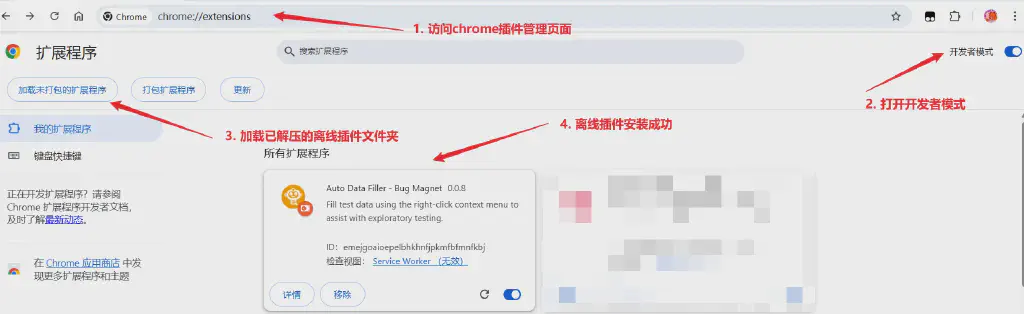
- Get the offline extension package and unzip it to a local directory
- Go to the Chrome extension management page
- Turn on developer mode
- Load the offline extension package you just unzipped
- Installation complete
Data Customization
Although this extension is simple to use, there is one problem: the test data is mainly in English, and many built-in data sets may not cover the data we commonly use.
Through the offline package, we can also customize the data.
This data is actually stored in the jsformat.js file under the extension package’s js directory; just add or modify your custom data in the file.
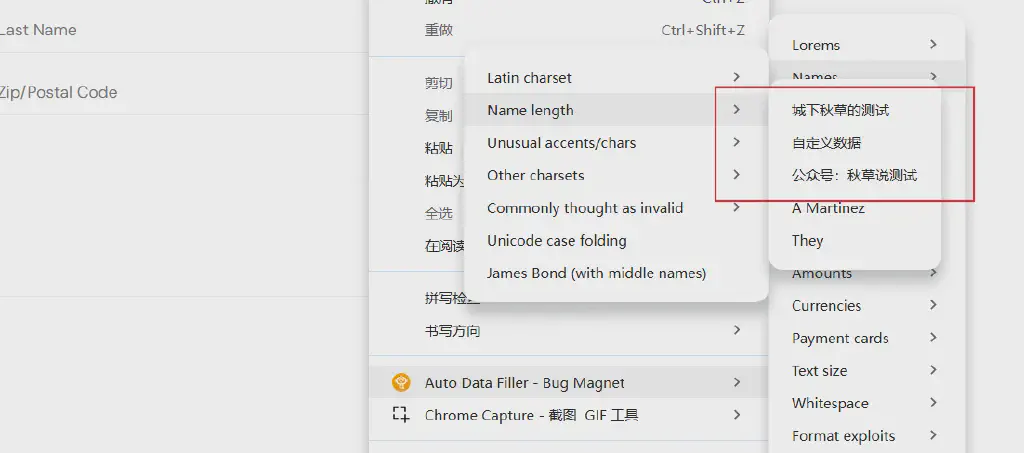
The following shows the effect of the data brought up by the extension after modification.