
What Is Magentic UI?
Magentic UI is an open-source Agent assistant that Microsoft released with much fanfare on May 19, and it just updated to its second version, 0.04, on the 24th

Judging from the official introduction, the goal is to build a human-centered intelligent assistant, powered at its core by several different agent systems, capable of web browsing and operation, code generation and execution, and file generation and analysis.
What mainly sets it apart from other AI browser tools is its transparent and controllable interactive interface, which supports efficient human-AI collaborative participation. The system is built on Microsoft’s agent-building framework AutoGen and is currently still at the prototype research stage.
Core features include:
🧑🤝🧑 Collaborative planning: users and the AI work together through chat and a plan editor to create and revise step-by-step execution plans.
🤝 Collaborative tasks: users can intervene in real time and guide task execution directly through the web browser or the chat interface. Magentic-UI can proactively ask for confirmation or request assistance when needed.
🛡️ Action guard: sensitive operations require explicit user approval before they can be executed.
🧠 Plan learning and retrieval: it learns from past tasks to optimize future automation workflows and saves good solutions into a plan library. Stored plans can be invoked automatically or manually in subsequent tasks.
🔀 Parallel task execution: it supports running multiple tasks in parallel, and a session status indicator shows in real time when Magentic-UI needs your input or has completed a task.
Design Architecture
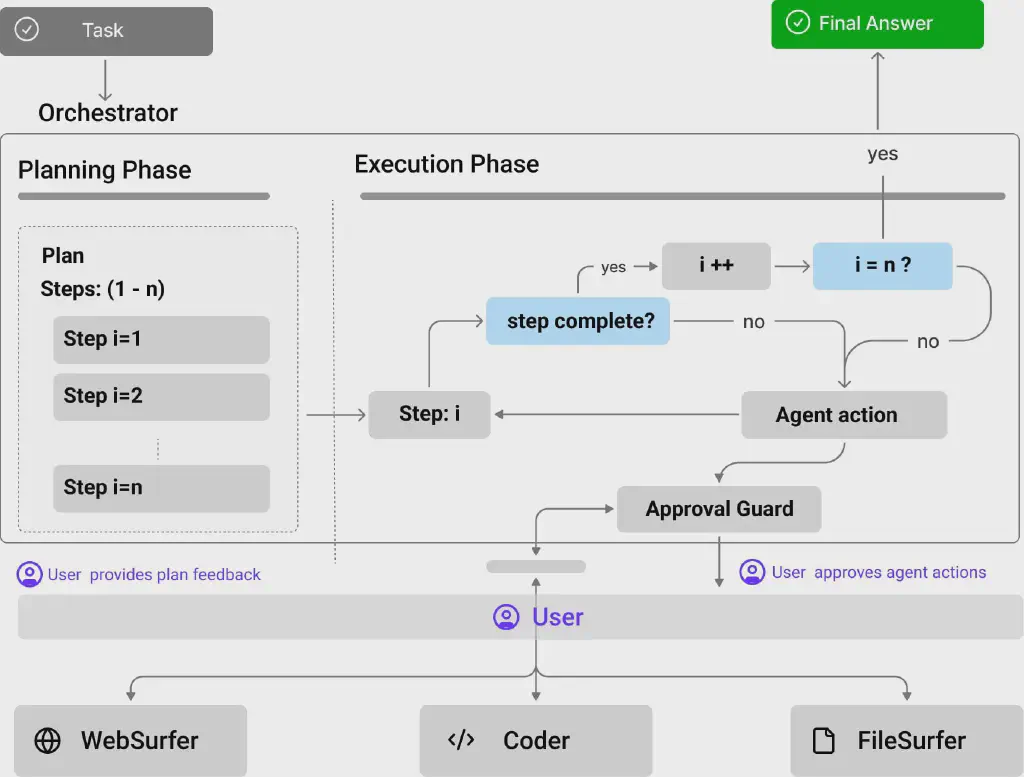
The underlying system of Magentic-UI consists of a group of specialized agents adapted from AutoGen’s Magentic-One system (shown in the figure above), with each agent implementing different functions through modular collaboration:
Agent Functionality
Orchestrator
- Functional role: the main LLM-based controlling agent, responsible for collaboratively making plans with the user, deciding when to request user feedback, and assigning subtasks to other agents.
- Collaboration flow:
- Jointly create a step-by-step execution plan with the user;
- Dynamically determine the points where user intervention is needed;
- Dispatch subtasks to other agents for execution.
WebSurfer
- Functional role: an LLM agent equipped with a web browser, supporting multi-round web interaction operations.
- Core capabilities:
- Following the Orchestrator’s instructions, perform operations such as clicking, typing, scrolling, and page navigation;
- Beyond AutoGen’s multimodal web browser: adds tab management, option selection, file upload, and multimodal query support.
Coder
- Functional role: an LLM agent equipped with a Docker code execution container.
- Core capabilities:
- Write and execute Python and Shell commands;
- Feed the execution results back to the Orchestrator.
**FileSurfer
**
- Functional role: an LLM agent integrating a Docker container with the MarkItDown package file-conversion tool.
- Core capabilities:
- Locate files in Magentic-UI’s controlled directory;
- Convert files to Markdown format and support question answering over their content.
UserProxy
- Functional role: the agent role that interacts with the system on behalf of the user.
- Collaboration mode: the Orchestrator can delegate tasks directly to the user (rather than to other agents) to complete.
User Interaction Flow
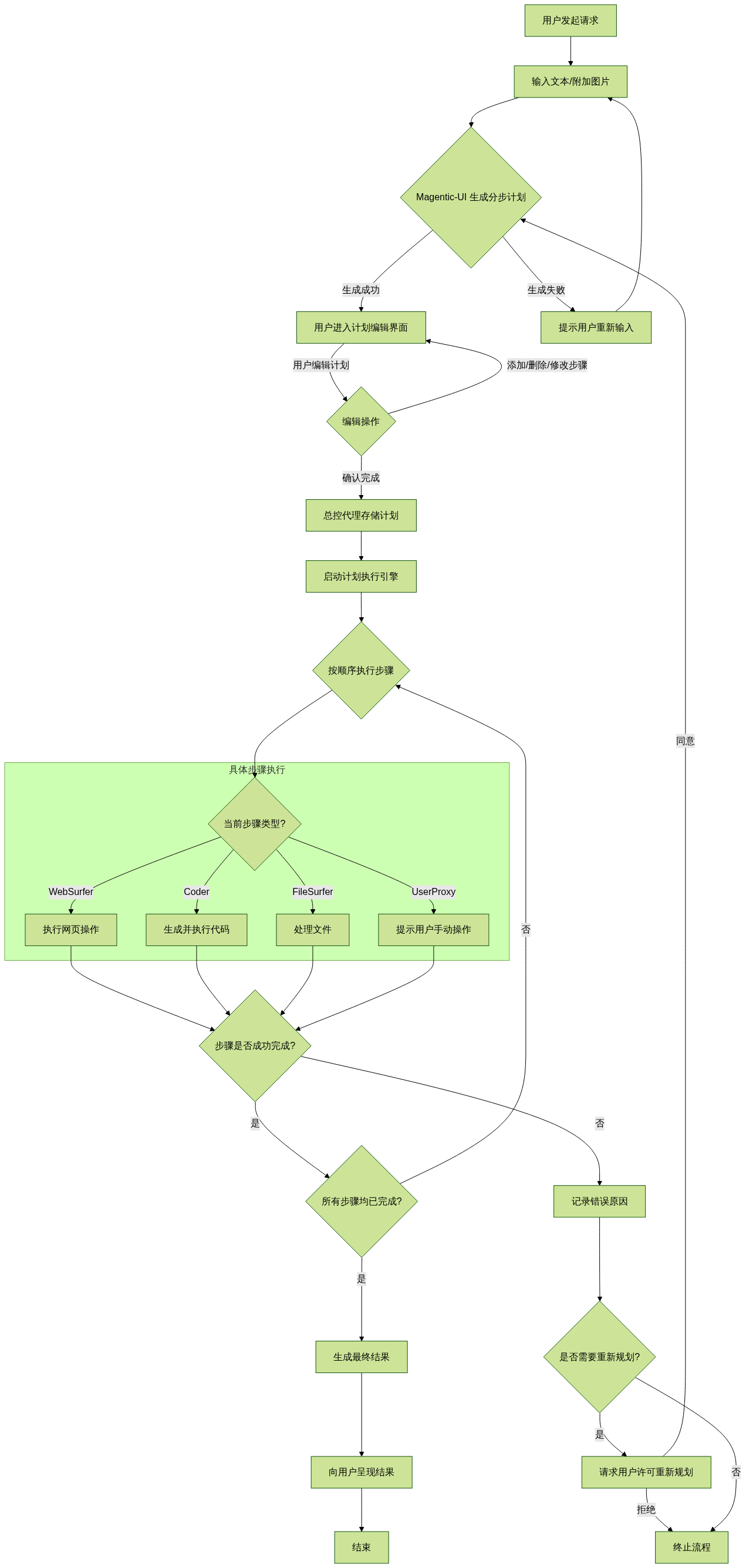
The interaction flow of a user using Magentic UI can be illustrated by the following diagram:
| |
Input and plan generation
- The user triggers the flow through text/images, and the system generates an initial plan. If it fails, the user is prompted to re-enter.
- The user iteratively refines the plan through the editing interface, and after confirmation, moves to the execution phase.
Plan execution logic
- The Orchestrator assigns tasks step by step to the corresponding agents (WebSurfer/Coder/FileSurfer) or to the user.
- After each step is completed, the status is verified; if it fails, a decision is made on whether replanning is needed (requiring user authorization).
Dynamic control and termination
- The user can intervene at any time: pause execution, modify the plan, or terminate the flow.
- Once all steps are completed, the final result is delivered, with transparent error feedback provided in exceptional cases.
Tool Deployment
Magentic AI is mainly developed in Python, with the web part based on FastAPI. Its AI control primarily uses Playwright to control a virtual browser inside a Docker container, which can be displayed to the user in real time. The large model behind it is mainly used through the API access methods of various open large models.
Therefore, to deploy Magentic UI, you first need to confirm the relevant prerequisites:
- Docker is installed; if it is a Windows system, install Docker Desktop and integrate it with WSL
- Provide the API KEY for accessing the large model; the default is OPENAI’s API KEY
- A Python runtime environment with a version >3.10
The tool was deployed in WSL. First create a Python virtual environment, then install Magentic AI and its related dependencies
| |
Make sure Docker is started, and before running Magentic UI there should be no related containers running
| |
For the large model, you can use OPENAI on Microsoft Azure AI; after completing the configuration, set the corresponding api key as the environment variable OPENAI_API_KEY
| |
In addition, Magentic UI itself needs to be configured for the large model; the Azure AI configuration template is as follows:
| |
Running
Then run Magentic ui, which uses port 8081 by default. The first run will download multiple different docker images and related dependencies, which takes a long time, so wait for the installation to complete
| |
Once the following information appears in the running log, startup has succeeded
| |
Access http://localhost:8081 in the browser
You will see the following interface
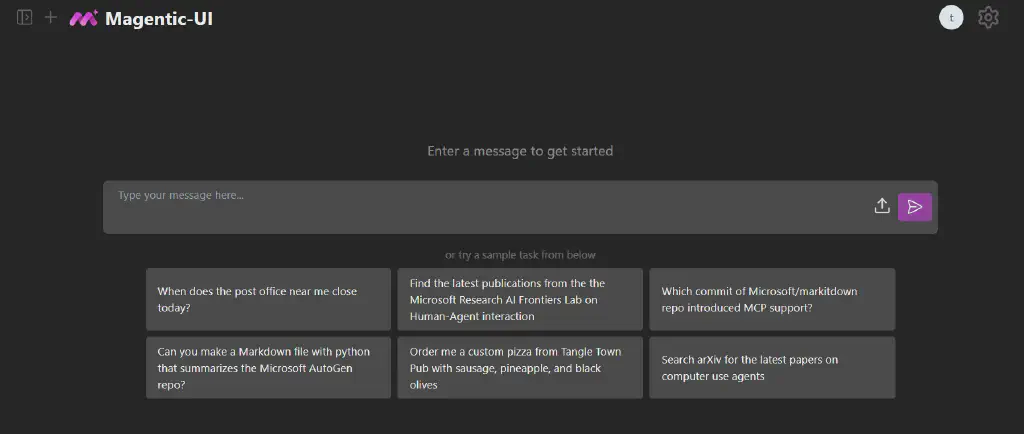
After starting a session, for example, ask the AI to help us complete a test
| |
If the installation is correct and the large model calls work normally, Magentic UI will plan the relevant task plan and ask the user to confirm
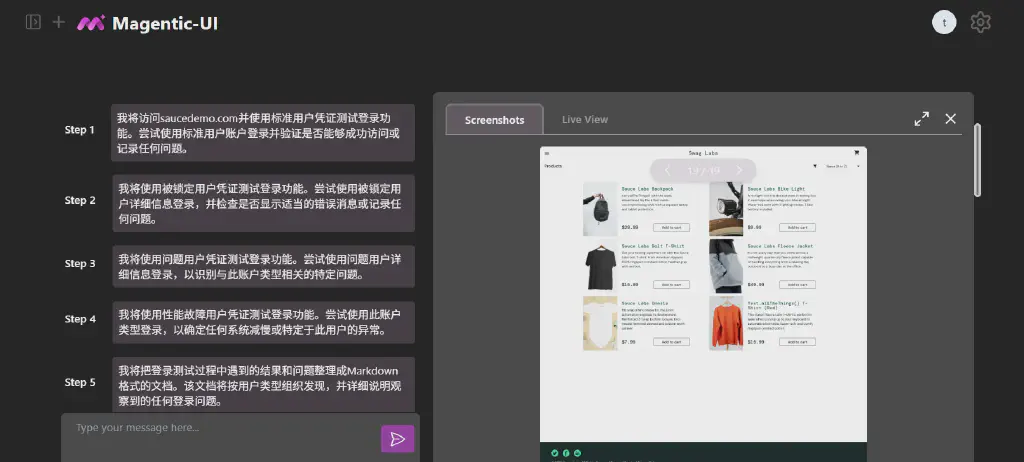
The user can also adjust the plan based on the feedback, and during plan execution can interact with the AI to change its execution path. For a concrete execution demonstration, see the video below.
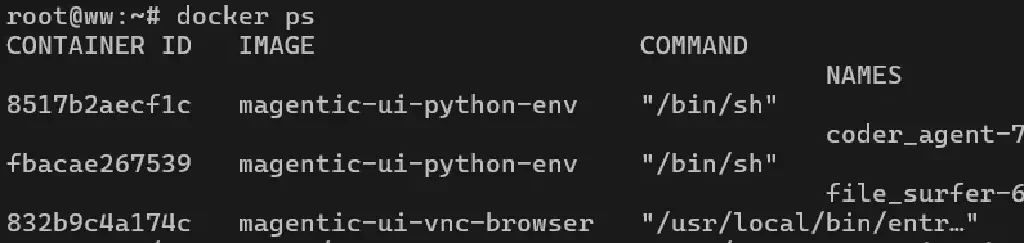
At this point, checking the docker runtime information in WSL, you can see that 3 containers are running, two of which are mangenti UI’s coder and file surfer agents, and the other is a remotely viewable vnc_browser container
After the series of steps is completed, Magentic UI obtains the following markdown-format result summary based on the initial instruction.
| |
Hands-On Impressions
Overall, after using it, repositioning AI as an assistant role is clearly more in line with the reality of current AI applications, and displaying the AI’s operation process in real time through the container makes AI task execution no longer a black box, which is indeed much friendlier.
However, in use I still feel the practicality is not very good. Although the official statement says it is still research-oriented at this stage, there is still considerable room for improvement.
- Installation and configuration are relatively complex, with numerous dependency packages, and it takes a long time
- The capability of the large model itself has a large impact on the execution process, including whether interactions can be completed normally. There are many call failures and exceptions.
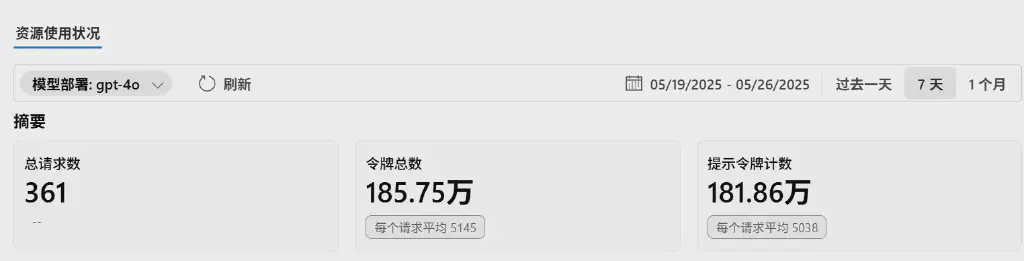
- The token consumption of the large model is considerable; to complete one task, it actually breaks down into dozens of different requests, and the token consumption of each request is also in the thousands, so with a paid model the cost is high
The figure below shows the token consumption during my trial as viewed in the Azure backend, which is quite considerable.
In short, the development direction of Magentic UI is worth looking forward to, but for now we still need to wait for its further refinement.