In the previous articles 【】 and 【】, we introduced the pros and cons and the basic usage of Bruno, the API testing tool that has recently attracted much attention. In this article, building on the previous one, we will continue by introducing the advanced usage of Bruno related to test automation.
Bruno’s Six Levels of Variable Scope
Similar to Postman, Bruno also provides a multi-layered design for the use of variables in API testing, distinguished by scopes at different levels, which brings more flexibility and application scenarios to API testing and automation.
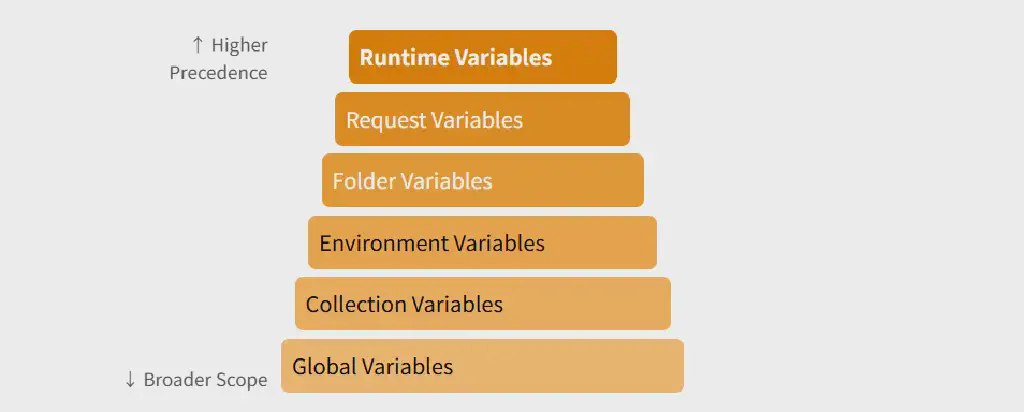
Bruno offers 6 different types of variables, and the order of their scopes is as follows:
Global Variables
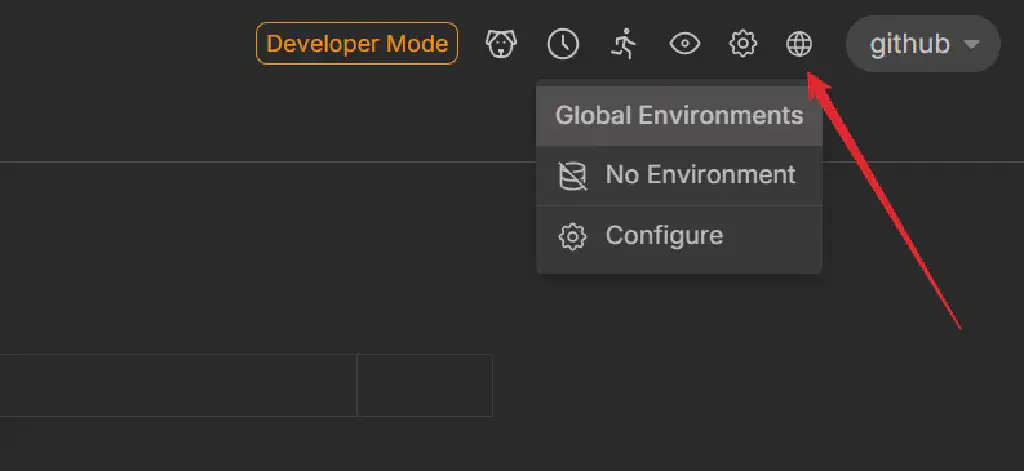
Global variables are the variable type with the widest scope. Global variables are set through Bruno’s global Environments settings, located as follows:
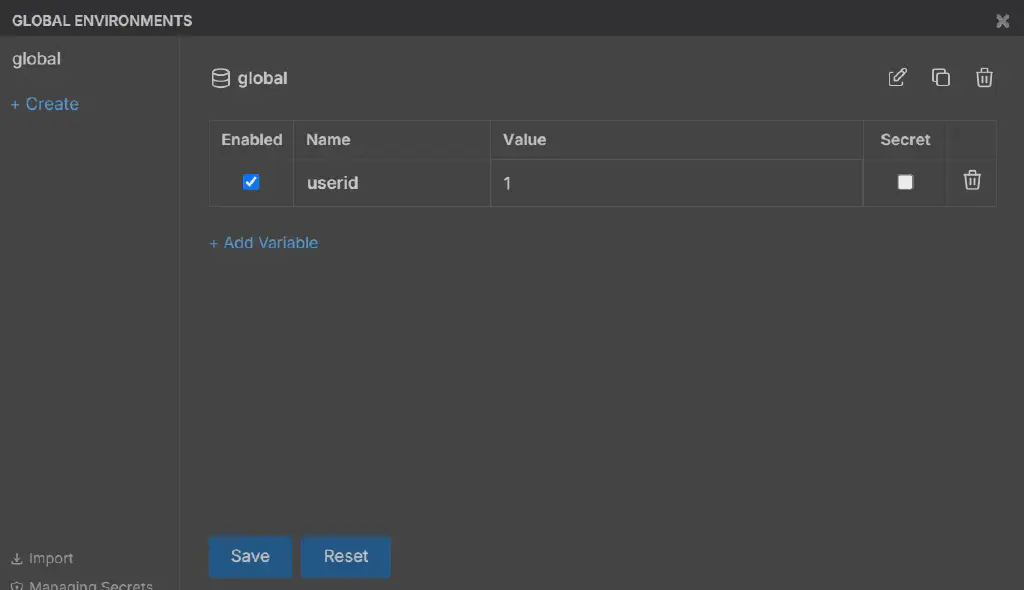
Then, for example, add a global variable, configure it, and enable it:
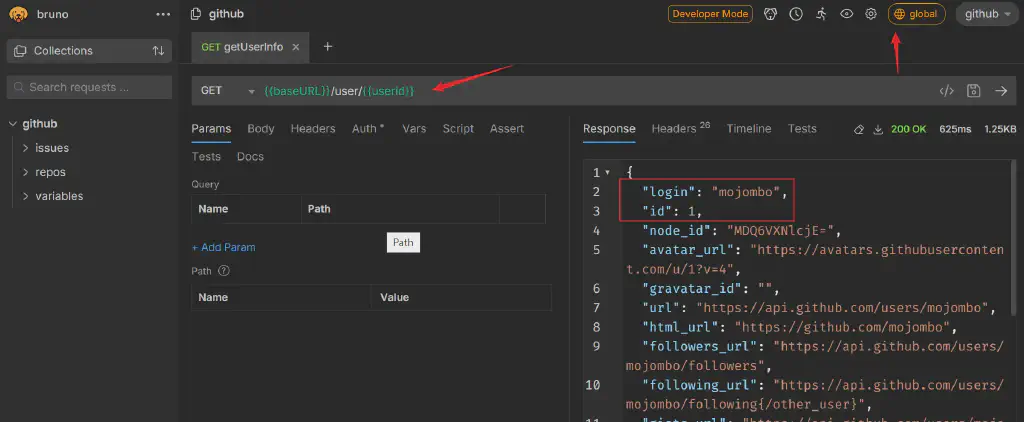
At this point we fetch user information from the Github API, and can retrieve the user with userid = 1.
Collection Variables
After setting global variables, then set collection variables.
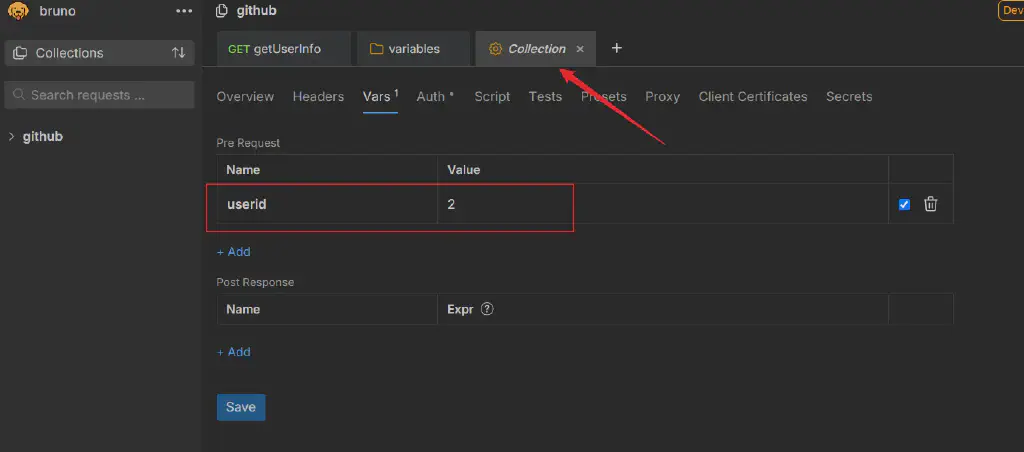
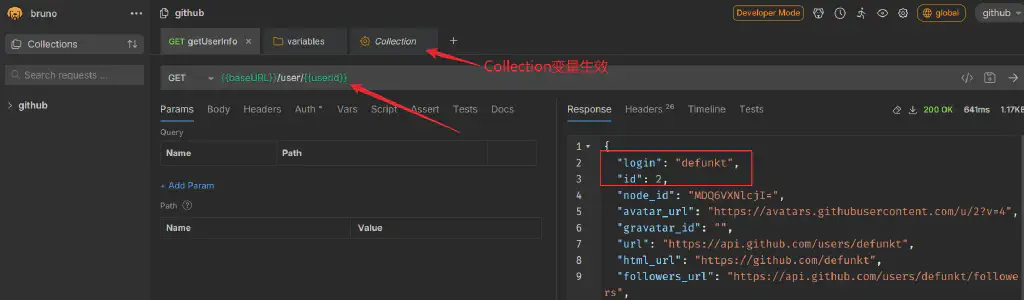
Then send the request - what takes effect now is the collection variable.
Environment Variables
The next level lets you configure different environments, set up in the following location:
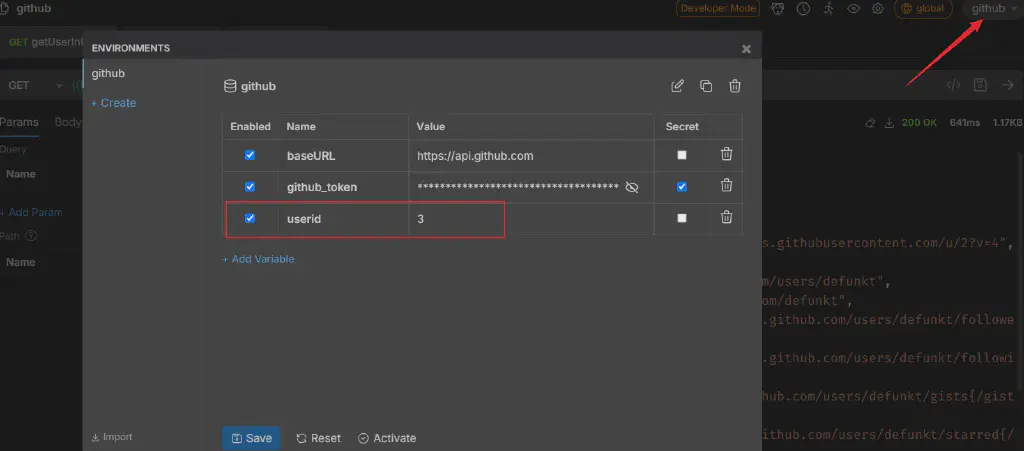
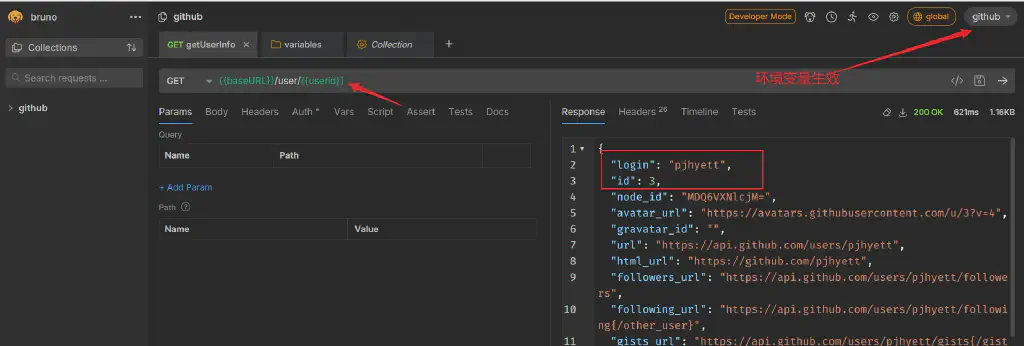
What takes effect now is userid = 3.
Folder Variables
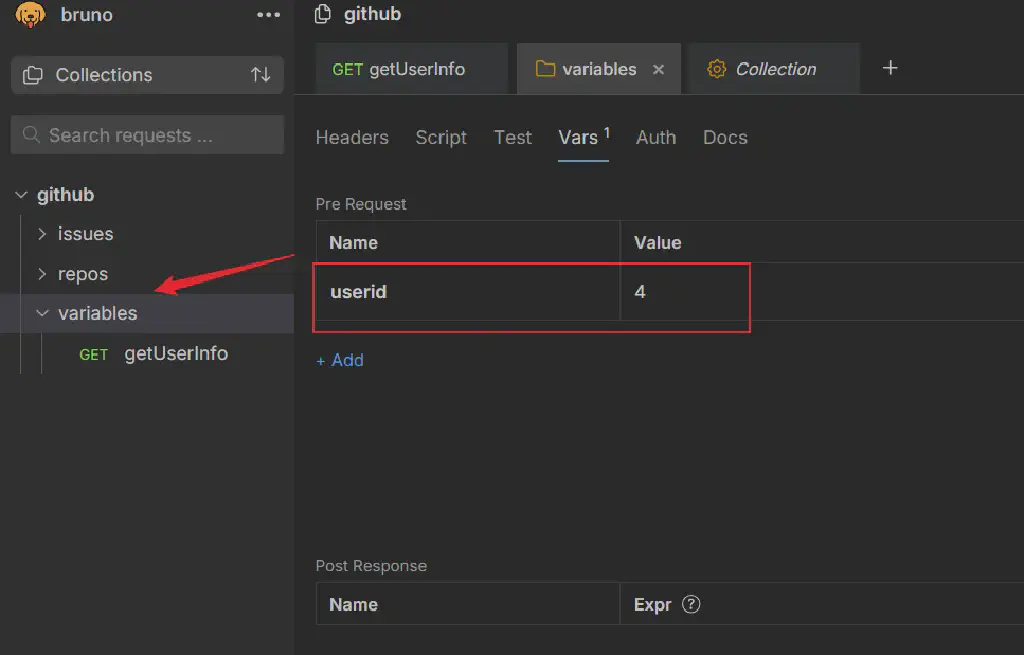
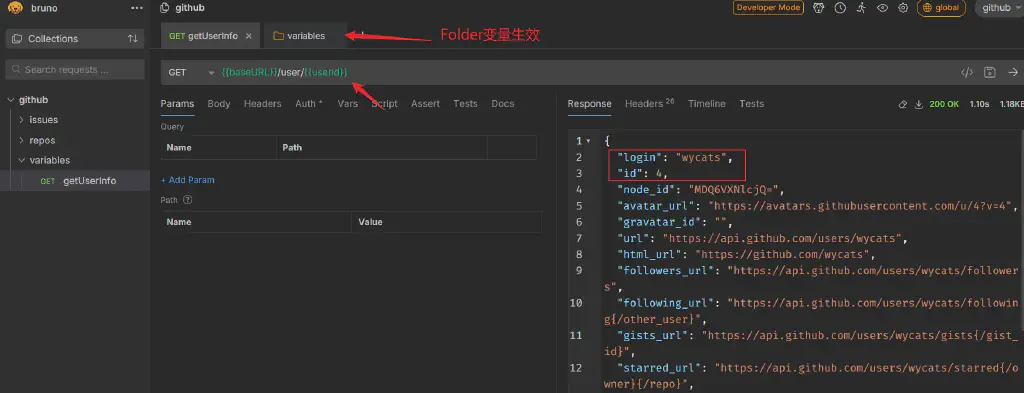
One level below the collection, you can create folders; setting variables here makes them folder variables that take effect.
Request Variables
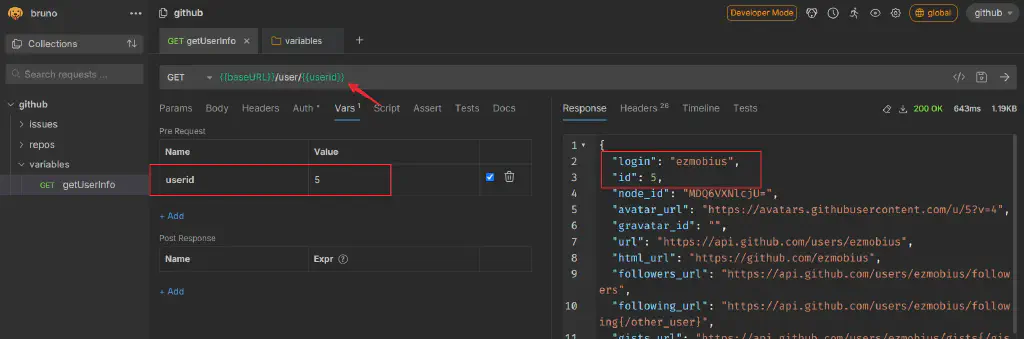
One level further down are the variables set within a specific request.
Runtime Variables
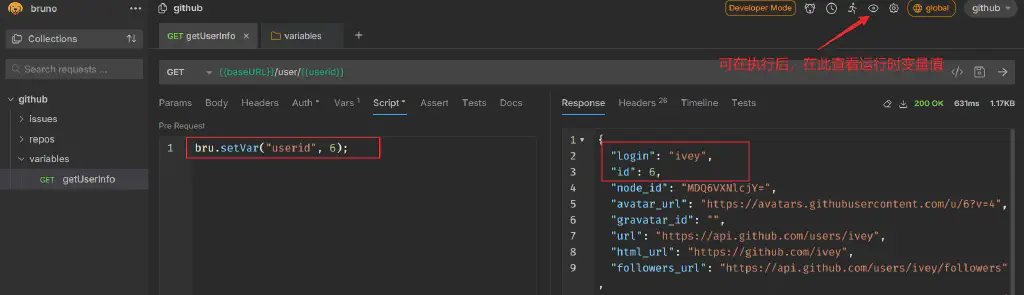
Beyond preset variables, Bruno also supports setting runtime variables at execution time through scripts, using the following code:
| |
After executing the request, to view the current runtime variables you can also open the display view via the corresponding button in the toolbar.
From the examples above, you can see Bruno’s multi-level variable system and its scopes. For the same variable name, the order of precedence is as follows:
Runtime Variables -> Request Variables -> Folder Variables -> Environment Variables -> Collection Variables -> Global Variables
Process Environment Variables
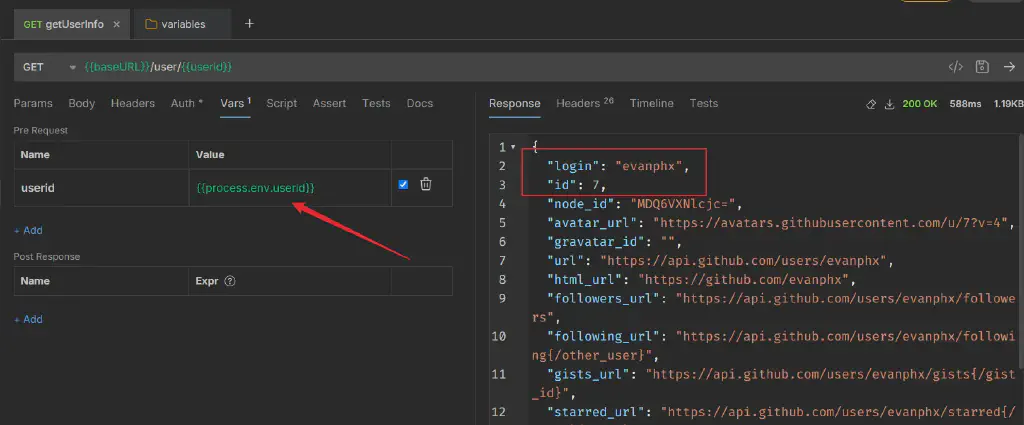
Beyond these multi-level variable designs, when working with APIs, sensitive data variables such as tokens, API Keys, or certain account passwords may be things we do not want to appear in the API and its related configuration files ( *.bru ). For this type of variable, Bruno also provides a targeted solution, namely storing them through a .env file. The .env file needs to be placed in the root directory of the collection, and variables are defined in key-value form, for example:
| |
At this point, when configuring variables we can reference them via {{process.env.userid}}, avoiding sensitive data appearing directly in the API definition files.
Bruno Scripts and Execution Order
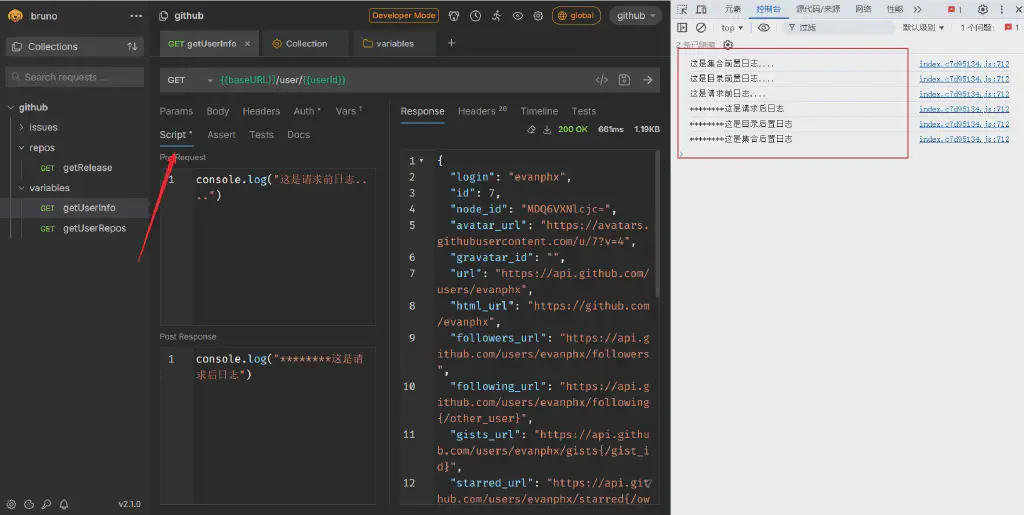
Bruno’s scripting feature uses standard JavaScript syntax. You can define scripts to be executed before (Pre) and after (Post) a request at three different levels: Collection, Folder, and Request. Bruno also provides two script execution order models (the main difference being the execution order of post scripts).
1. Sandwich Flow (Default)
In this mode, the execution order of scripts at different levels is as follows.
- Collection Pre Script
- Folder Pre Script
- Request Pre Script
- Folder Pre Script
- Request Post Script
- Folder Post Script
- Collection Post Script
- Folder Post Script
This is similar to the layered execution order of various unit testing frameworks.
2. Sequential (Natural) Flow
This execution order is similar to Postman’s script execution order, following the hierarchy strictly level by level.
- Collection Pre Script
- Folder Pre Script
- Request Pre Script
- Folder Pre Script
- Collection Post Script
- Folder Post Script
- Request Post Script
- Folder Post Script
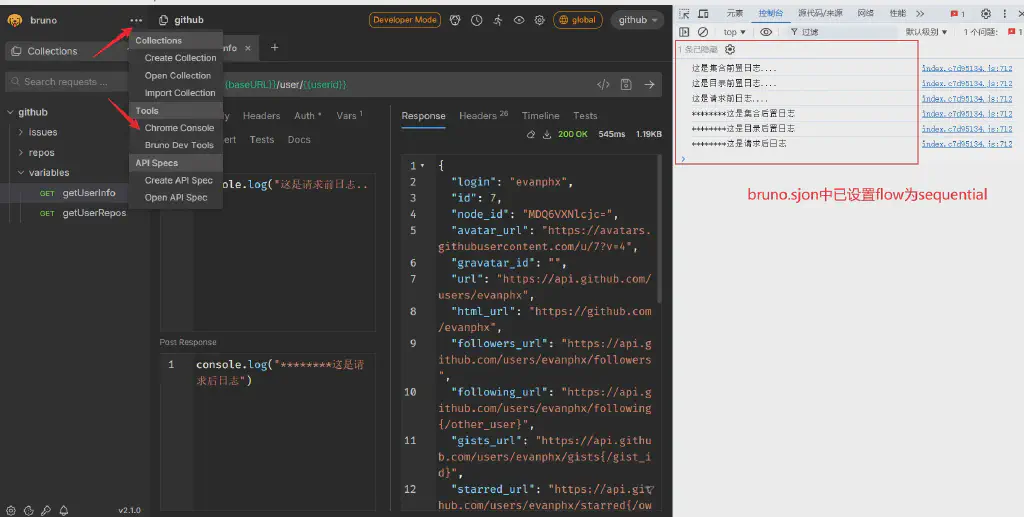
To adopt this order, you need to configure the flow parameter in Bruno’s configuration file bruno.json, in a form like:
| |
Execution Example
Add corresponding script logs to the scripts at each level, open Bruno’s integrated Dev Tool console, and you can see the difference in execution order.
Modify bruno.json and set the flow mode to sequential, and you can see that the output order of the post portion changes.
Handling Flow Dependencies
In real API testing, a frequently encountered scenario is that a later request depends on the response data of an earlier request, such as the most common case of obtaining a dynamic token.
Using Bruno’s variables and scripts, we can implement this kind of request correlation through scripts.
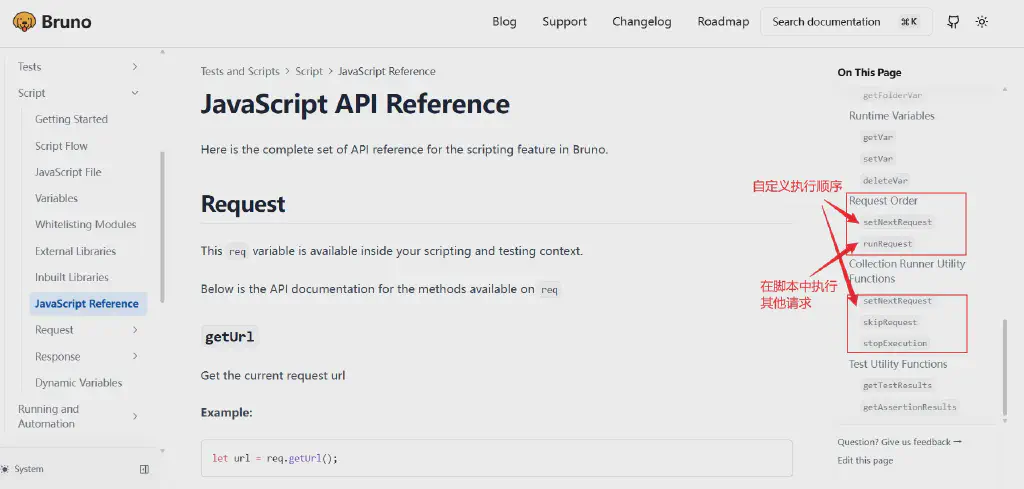
In Bruno’s official documentation, its built-in bru object provides methods such as setNextRequest and runRequest, allowing us, as needed, to specify the next request to execute when running a given API request (instead of following the default order), or to directly run other API requests from within the current request’s script.
In this way, by setting variables and passing them between APIs, we can implement flow dependency scenarios.
For example, here we fetch the list of repos under a github user via this API. Here we want the {{username}} variable to be obtained by specifying a userid. That is, first execute the earlier getUserInfo API and, based on userid, obtain username.
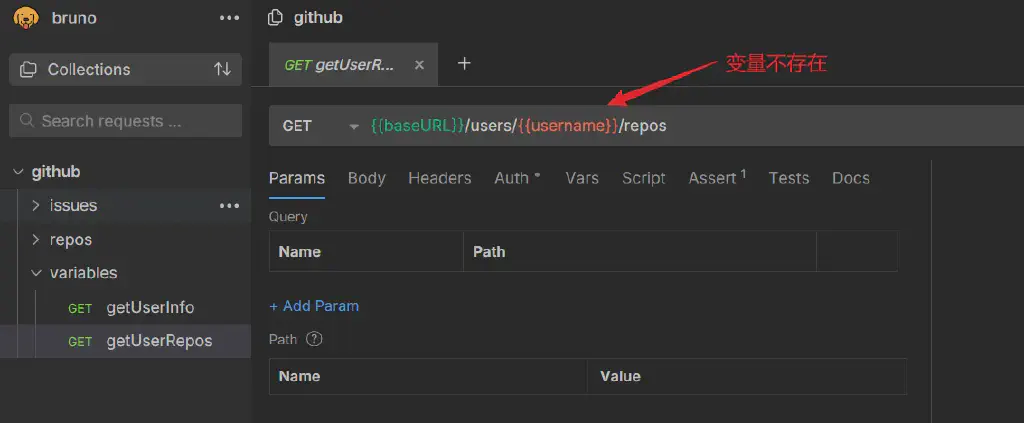
Here we define getUserRepos using the variable {{username}}, but at this point the variable is undefined, so it is shown in red.
Then in the getUserInfo API, we define a script that extracts the username from the current response and assigns it to a variable, then directly calls the getUserRepos API (note that the API path called here should be defined relative to the collection root path).
| |
Execute getUserInfo and you can see it succeeds; the getUserRepos API executed in the script also successfully gets a 200OK response status.
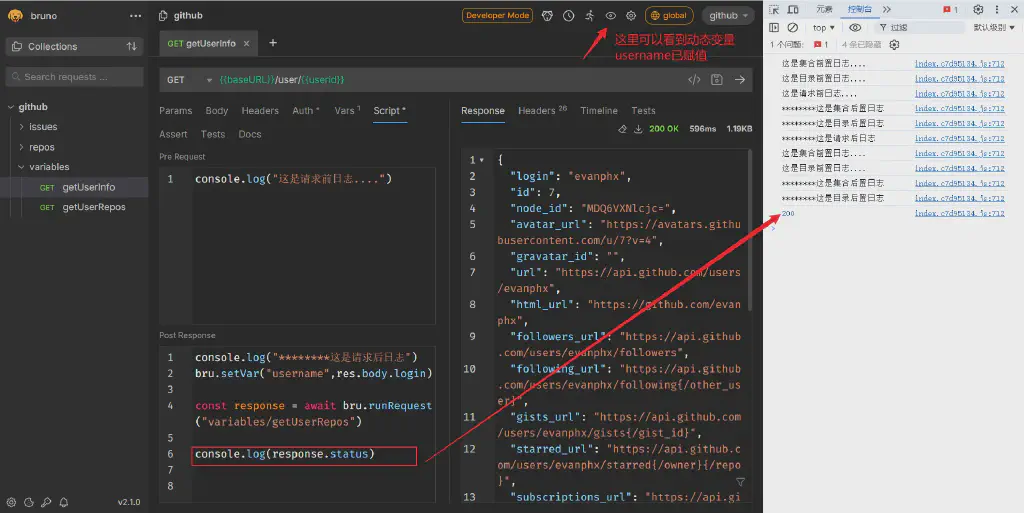
Runner
Besides running a specified API in a script, Bruno also provides a Runner executor. Open the executor from the toolbar to batch-run all APIs in a Collection in sequence.
For the example above, if we only obtain and define the variable username in getUserInfo without executing, as long as getUserRepos runs after getUserInfo, it will likewise succeed.
The Runner in action looks like this:
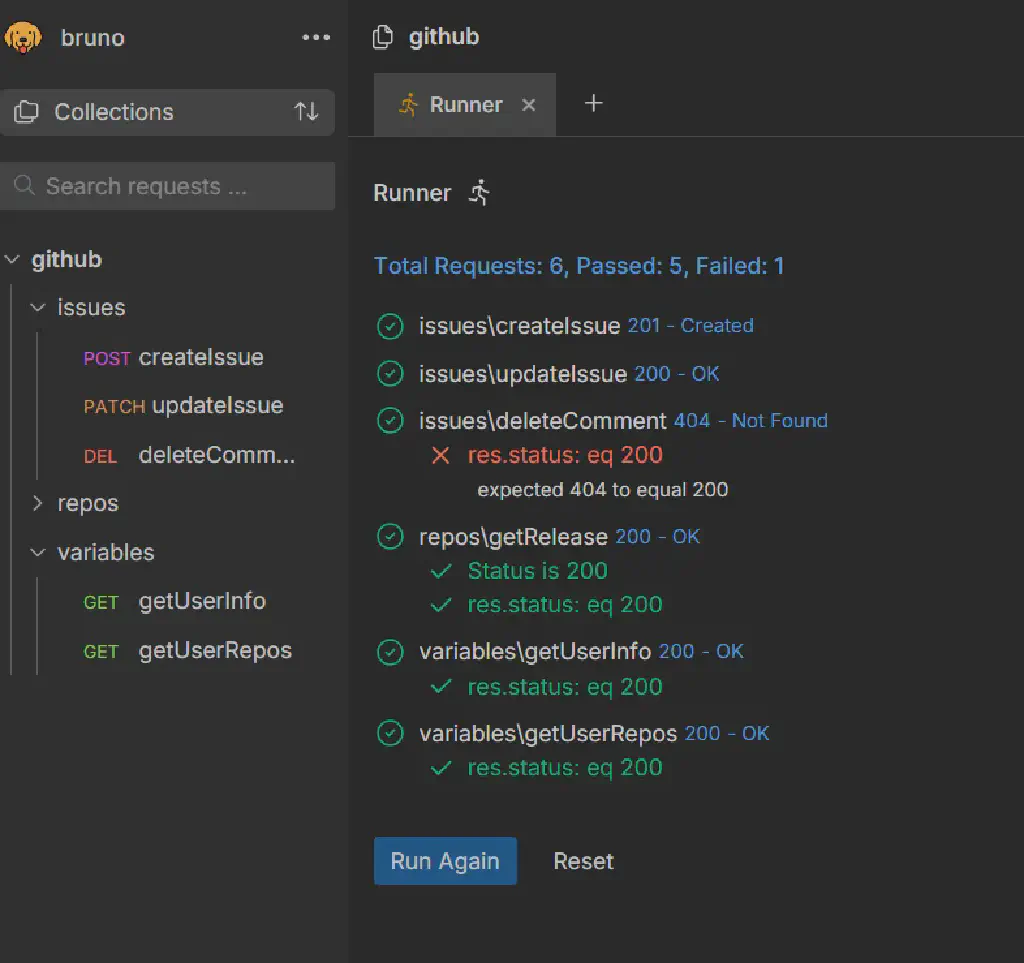
But Bruno’s default behavior here is to run all requests in a collection, and although the ability to adjust the order is offered, it is only included in the paid premium version, including csv- or json-based data-driven functionality, which is also absent from the free version. It is somewhat underwhelming.
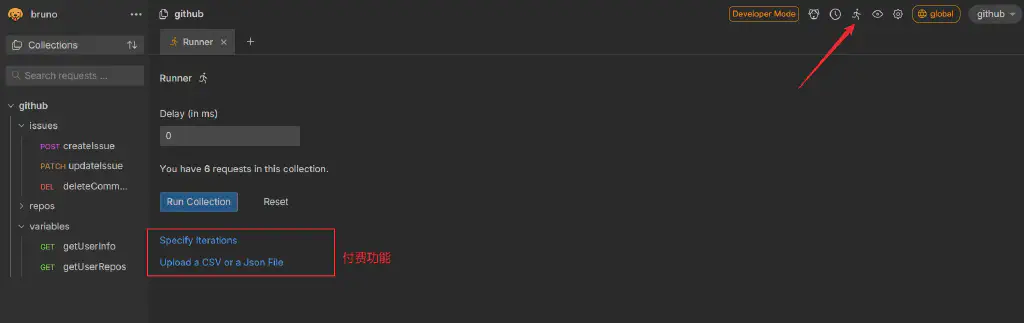
Bruno Command Line - Bruno CLI
Because the Runner feature above is limited, it is rather underwhelming and basically unusable when we want to do API automation. But Bruno’s premium features here actually only restrict triggering from the UI.
To run automation, we can also make use of the command-line functionality it provides.
This CLI program needs to be installed separately.
| |
After installation, being able to display the version number correctly means it installed successfully, for example:
| |
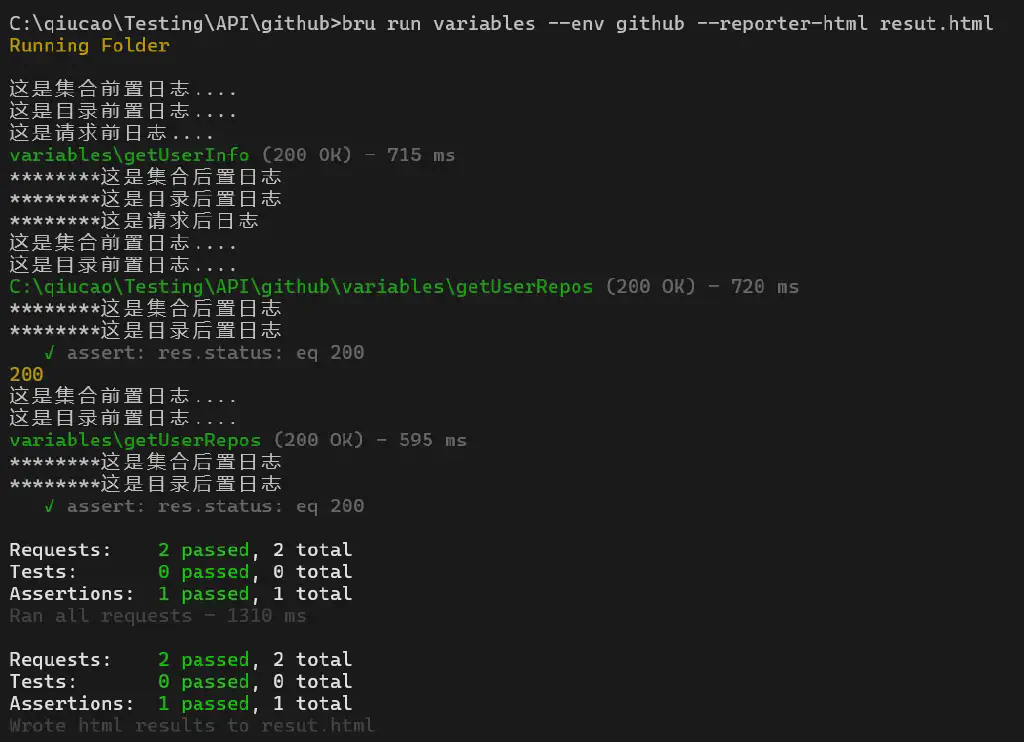
By executing from the command line, we can, according to our needs, for example run the APIs in a specified directory.
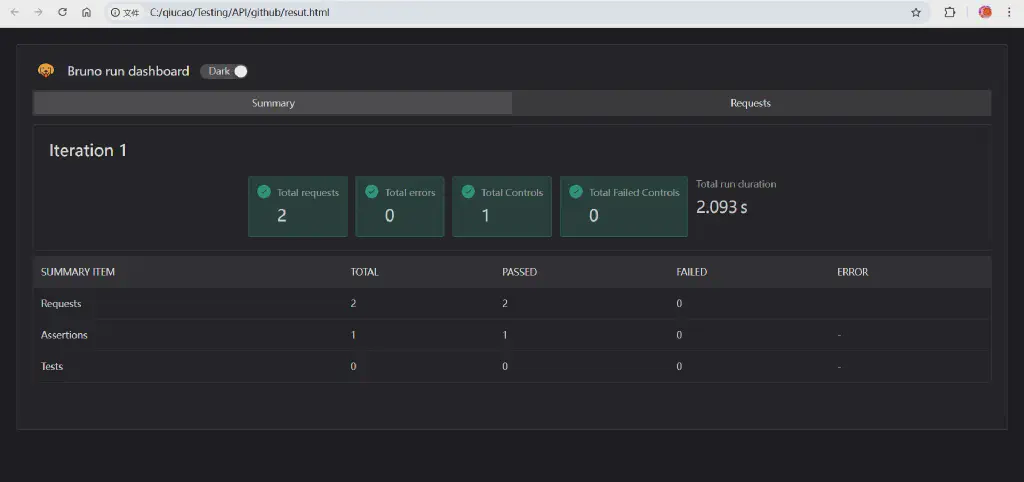
The two parameters carried here - --env specifies the environment to use, and --reporter-html generates an HTML-format test report after execution completes. (For detailed parameters, refer to the documentation https://docs.usebruno.com/bru-cli/commandOptions)
The generated test report:
The above is the advanced explanation of using scripts and automated execution features in Bruno. Stay tuned for the following articles.
Reply with 大纲 to view the detailed syllabus of the QiuCao full-stack testing skills course. Reply with 进群 to join the testing discussion group and share testing techniques and exchange information with fellow testers.