Foreword
In several of our previous articles on AI testing, we introduced methods for achieving AI-driven test automation through several different AI browser tools, including playwright-mcp, midscene.js, and magentic ui. In fact, before these constantly emerging new tools appeared, there was an AI browser-driving tool that was released even earlier (2024.11) and is likewise still being continuously refined: Browser Use. Its implementation approach provided a great deal of reference for the related tools that came later. And after more than half a year and over 40 version iterations, the current latest version is 0.2.5, and the tool’s features have become increasingly complete.
In this article, let us take a systematic look at this AI browser.
browser-use Overview
browser-use is positioned as a simple yet powerful solution that connects different AI Agents with browsers, enabling AI-based intelligent browser automation.
It is a Python-based open-source library with over 61K stars on GitHub, which shows just how much attention it has attracted.
It mainly relies on the browser-control capabilities of Playwright/Puppeteer and the reasoning and analysis capabilities of large AI models to accomplish the shift of AI from an information assistant to an assistant that helps with execution. After it, MCP became widespread, and the subsequent variety of other AI-driven browser approaches all bear traces of the browser-use solution.
How It Works
The implementation of browser-use is, in fact, an AI Agent built with Langchain and LLM (Large Language Model) that understands web page content and further generates operation instructions. At its core, the project relies on the Playwright framework to implement browser automation operations, supports multiple browsers (such as Chromium, Firefox, etc.), and can simulate real-user behaviors like clicking, typing, and navigation.
Based on AI capabilities, the system can automatically identify interactive elements on web pages (such as buttons, input fields, etc.) and, combined with an understanding of the context, generate the corresponding interaction logic, improving automation efficiency and achieving AI-based browser intelligence.
Core Architecture Analysis
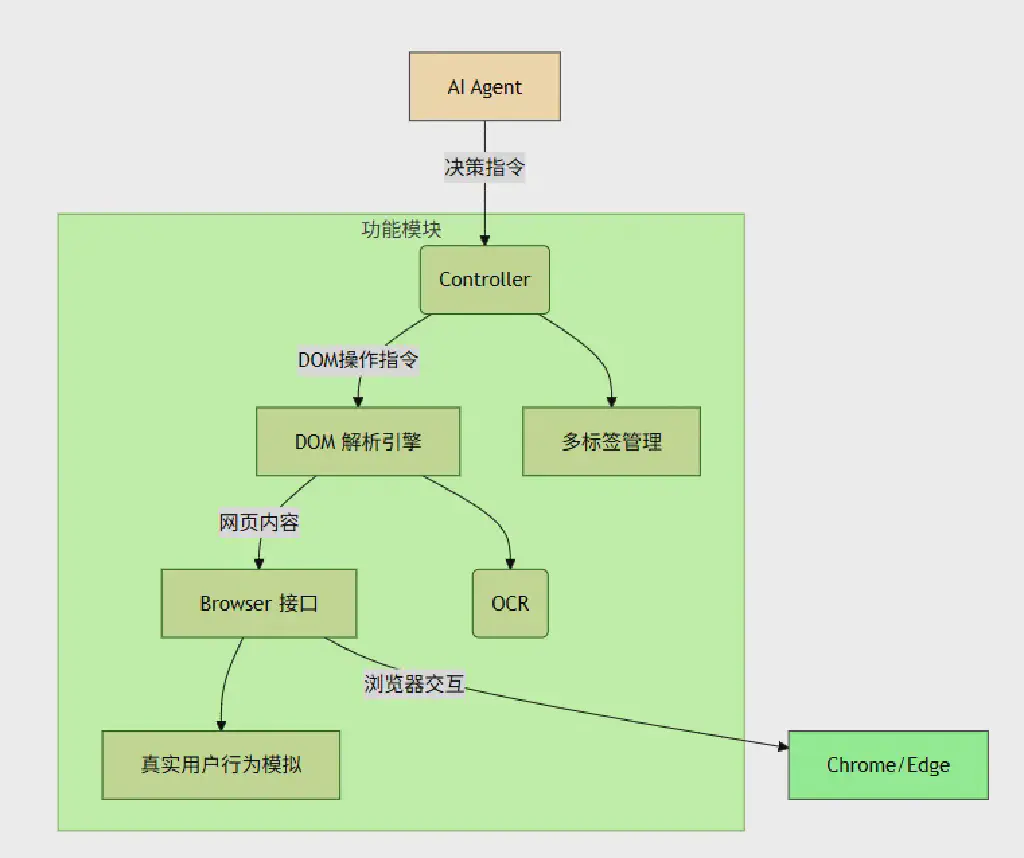
browser-use achieves deep integration between the AI Agent and the browser through a layered architecture. The main roles of the different layers of its core architecture are as follows:
Agent Layer (Decision Center)
This layer is mainly responsible for task-flow orchestration and decision-making. It manages the task flow by implementing a small state machine and interacts with the LLM (such as OpenAI) to obtain decision instructions.
Controller Layer (Instruction Converter)
This layer is responsible for translating high-level decisions into concrete browser operation instructions, supporting basic actions such as DOM operations and page navigation, and also providing management of multi-tab interaction logic.
DOM Parsing Engine
This layer performs real-time parsing of web page structure and content, including providing visual recognition capabilities (OCR support), and completes the construction of the mapping relationships for operable web page elements.
Browser Interface Layer
At this layer, the browser behavior is actually driven based on the Playwright framework. In addition to the built-in headless mode control, it can also interact with the user’s browser by specifying a browser path.
Architecture Diagram
Installation and Deployment
It is recommended to use the Python package management tool uv for installation and deployment
1
2
3
4
| uv venv --python 3.11
.venv\Scripts\activate
uv pip install browser-use
playwright install --with-deps
|
The tool needs the API KEY of the corresponding large model, defined in the .env environment configuration file, and supports all major mainstream LLMs:
1
2
3
4
5
6
7
8
| OPENAI_API_KEY=
ANTHROPIC_API_KEY=
AZURE_OPENAI_ENDPOINT=
AZURE_OPENAI_KEY=
GOOGLE_API_KEY=
DEEPSEEK_API_KEY=
GROK_API_KEY=
NOVITA_API_KEY=
|
Using the Web Interface
browser-use itself also provides a Web UI interface for direct invocation, which also needs to be installed separately. Continue executing in the venv:
1
2
3
4
5
|
git clone https://github.com/browser-use/web-ui.git
cd web-ui
uv pip install -r requirements.txt
python webui.py --ip 127.0.0.1 --port 7788
|
Startup Interface
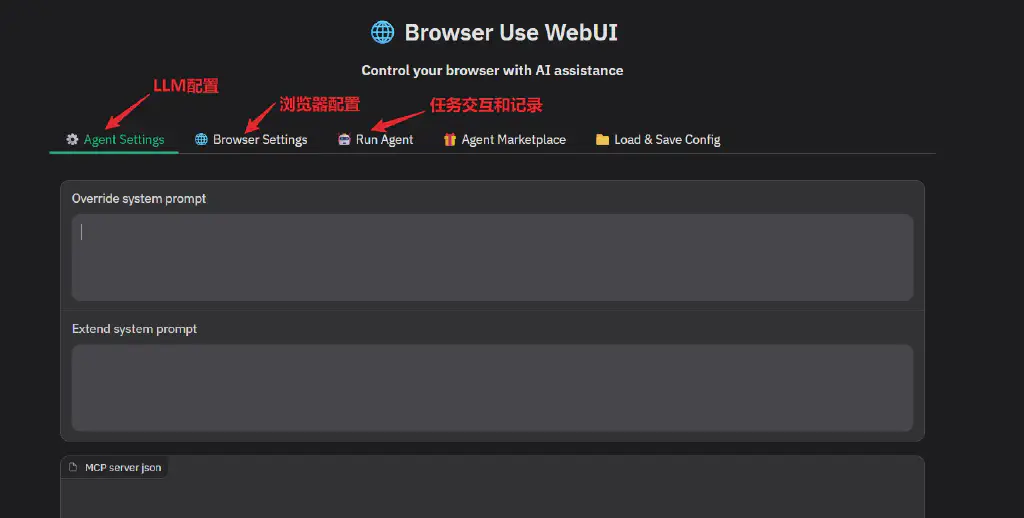
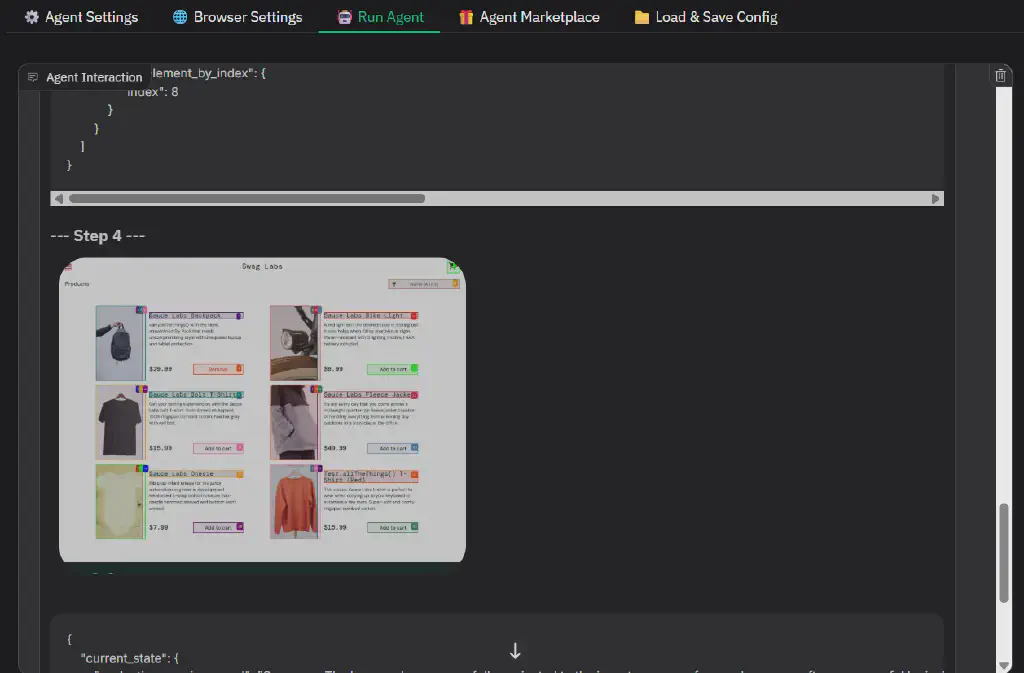
After it runs successfully, you will see the following web-ui interface. Agent Settings lets you configure the LLM to use in the interface, Browser Settings configures how the browser interacts, and Run Agent is the interactive interface and result record that actually invokes the large model and browser to complete automation tasks.
LLM Configuration
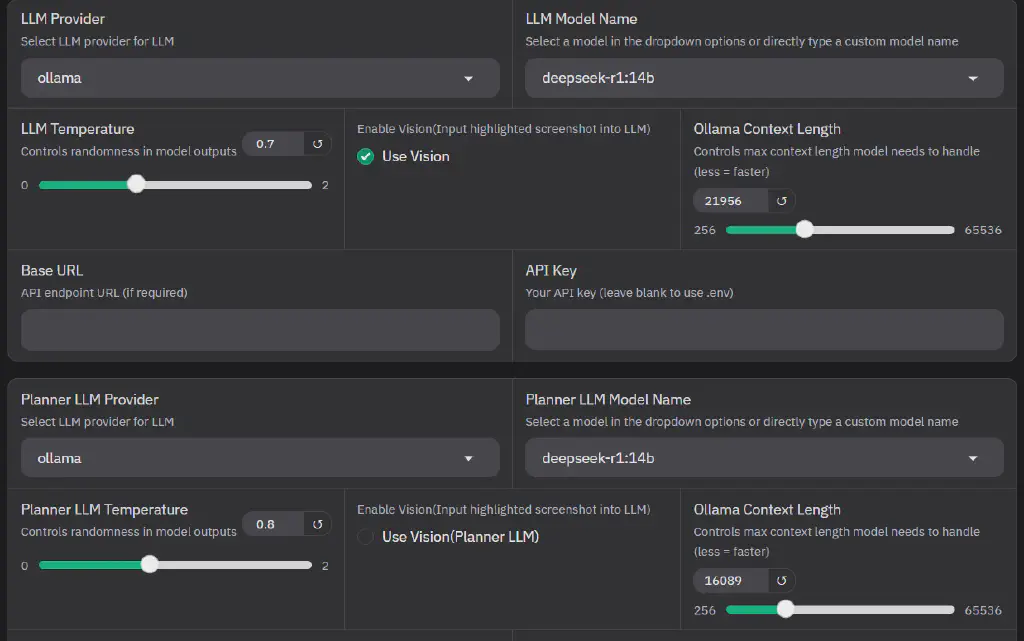
Here we use a locally deployed Ollama+Deepseek-r1:14b
Execution Process
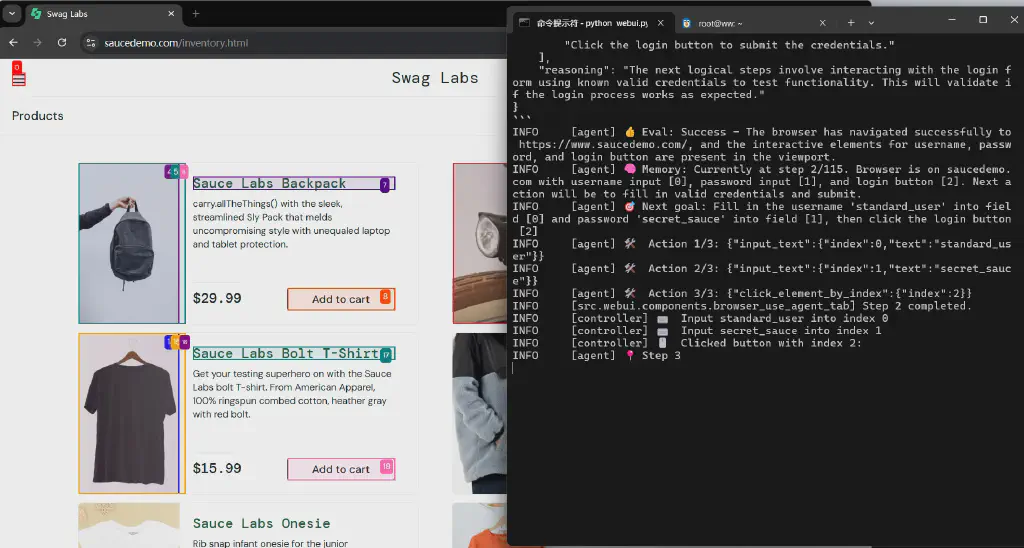
The actually invoked browser and the runtime log:
The entire execution process also generates a GIF image:

Python Script Invocation
Besides completing tasks through the Web-UI, in more cases it is invoked through code. For example, the following code calls the official DeepSeek API and includes the definition of the output format
 1
 2
 3
 4
 5
 6
 7
 8
 9
10
11
12
13
14
15
16
17
18
19
20
21
22
23
24
25
26
27
28
29
30
31
32
33
34
35
36
37
38
39
40
41
42
43
44
45
46
47
48
49
50
51
52
53
54
55
56
57
58
59
60
61
62
63
64
65
66
67
68
69
70
71
72
73
74
75
76
77
78
79
80
81
82
83
| from langchain_deepseek import ChatDeepSeek
from browser_use import Agent
from pydantic import SecretStr, BaseModel, ValidationError, field_validator, ConfigDict, Field
from dotenv import load_dotenv
import os
import asyncio
from typing import List,Optional
from browser_use import Controller
import json
# Unified model output definition
class PostItem(BaseModel):
model_config = ConfigDict(extra="ignore")
post_title: str
post_url: str
num_comments: int
hours_since_post: int
@field_validator('num_comments', 'hours_since_post', mode='before')
def convert_numbers(cls, value):
"""Ensure numeric fields are converted to integers"""
if isinstance(value, str) and value.isdigit():
return int(value)
return value or 0
class Posts(BaseModel):
posts: list[PostItem]
total: int
# Result parsing function
def parse_result(result: str | dict) -> Posts:
"""Safely parse result data"""
try:
if isinstance(result, str):
data = json.loads(result)
else:
data = result
print("Parsed data:", data)
return Posts.model_validate(data)
except (json.JSONDecodeError, ValidationError) as e:
print(f"解析错误: {type(e).__name__}: {e}")
# Non-JSON format, return the result directly
return result
controller = Controller(output_model=Posts)
load_dotenv()
api_key = os.getenv("DEEPSEEK_API_KEY")
# Initialize the model
llm=ChatDeepSeek(base_url='https://api.deepseek.com/v1', model='deepseek-reasoner', api_key=SecretStr(api_key))
async def main():
# Create agent with the model
agent = Agent(
task="测试saucedemo.com网站standard_user的登录功能, 使用不同密码(secret_sauce,空密码),登录成功则验证完成,否则需要输出错误信息。测试结果需要包含以下信息:\n1. 登录是否成功\n2. 如果登录失败,错误信息是什么\n",
llm=llm,
use_vision=False
)
history = await agent.run()
result = history.final_result()
parsed = parse_result(result)
if parsed.posts:
for post in parsed.posts:
print('\n--------------------------------')
print(f'Title: {post.post_title}')
print(f'URL: {post.post_url}')
print(f'Comments: {post.num_comments}')
print(f'Hours since post: {post.hours_since_post}')
else:
print(result)
# Async main function
if __name__ == "__main__":
try:
asyncio.run(main())
except Exception as e:
print(f"程序运行时出错: {e}")
|
Execution also opens the browser through Playwright, and the effect is similar to the web-ui.
The program output is as follows:
 1
 2
 3
 4
 5
 6
 7
 8
 9
10
11
12
13
14
15
16
17
18
19
20
21
22
23
24
25
26
27
28
29
30
31
32
33
34
35
36
37
38
39
40
41
42
43
44
45
46
47
48
49
50
51
52
53
54
55
56
57
58
59
60
61
62
63
64
65
66
67
68
69
70
71
72
73
74
75
76
77
78
79
80
81
82
| C:\qiucao\AI\browser_use>python app.py
WARNING [agent] ⚠️ DeepSeek models do not support use_vision=True yet. Setting use_vision=False for now...
INFO [agent] 🧠 Starting an agent with main_model=deepseek-reasoner +rawtools +memory, planner_model=None, extraction_model=deepseek-reasoner
INFO [mem0.vector_stores.faiss] Loaded FAISS index from /tmp/mem0_384_faiss/mem0.faiss with 0 vectors
INFO [mem0.vector_stores.faiss] Loaded FAISS index from C:\Users\weiwe\.mem0\migrations_faiss/mem0_migrations.faiss with 1 vectors
INFO [agent] 🚀 Starting task: 测试saucedemo.com网站standard_user的登录功能, 使用不同密码(secret_sauce,空密码),登录成功则验证完成,否则需要输出错误信息。测试结果需要包含以下信息:
1. 登录是否成功
2. 如果登录失败,错误信息是什么
INFO [agent] 📍 Step 1
INFO [agent] 🤷 Eval: Unknown - Just started the task. No previous actions taken.
INFO [agent] 🧠 Memory: Starting task: Test login functionality on saucedemo.com for user 'standard_user' with two password cases. 0 out of 2 password tests completed. First need to navigate to login page.
INFO [agent] 🎯 Next goal: Navigate to saucedemo.com login page to begin testing
INFO [agent] 🛠️ Action 1/1: {"go_to_url":{"url":"https://www.saucedemo.com"}}
INFO [controller] 🔗 Navigated to https://www.saucedemo.com
INFO [agent] 📍 Step 2
INFO [agent] 👍 Eval: Success - Navigation to saucedemo.com completed successfully. Login page is loaded with required input fields visible.
INFO [agent] 🧠 Memory: 0 out of 2 password tests completed. Starting first test case: username 'standard_user' with valid password 'secret_sauce'. Will verify login success by checking URL change to /inventory.html after submission.
INFO [agent] 🎯 Next goal: Execute first login test with valid credentials and verify success
INFO [agent] 🛠️ Action 1/3: {"input_text":{"index":0,"text":"standard_user"}}
INFO [agent] 🛠️ Action 2/3: {"input_text":{"index":1,"text":"secret_sauce"}}
INFO [agent] 🛠️ Action 3/3: {"click_element_by_index":{"index":2}}
INFO [controller] ⌨️ Input standard_user into index 0
INFO [controller] ⌨️ Input secret_sauce into index 1
INFO [controller] 🖱️ Clicked button with index 2:
INFO [agent] 📍 Step 3
WARNING [message_manager] Failed to parse model output: {
"current_state": {
"evaluation_previous_goal": "Success - First test case completed: Login with username 'standard_user' and password 'secret_sauce' was successful. Verified by URL change to /inventory.html and presence of product listings.",
"memory": "1 out of 2 password tests completed. First test successful. Next: Test with empty password. Need to logout before second test.",
"next_goal": "Logout to return to login page for second test case"
},
"action": [
{"click_element_by_index": {"index": 0}}, // Open menu
{"wait": {"seconds": 2}}, // Wait for menu animation
{"click_element_by_index": {"index": 34}} // Logout (assuming logout appears at index 34 after menu opens)
]
} Expecting value: line 8 column 48 (char 532)
WARNING [agent] Failed to parse model output: content='{\n "current_state": {\n "evaluation_previous_goal": "Success - First test case completed: Login with username \'standard_user\' and password \'secret_sauce\' was successful. Verified by URL change to /inventory.html and presence of product listings.",\n "memory": "1 out of 2 password tests completed. First test successful. Next: Test with empty password. Need to logout before second test.",\n "next_goal": "Logout to return to login page for second test case"\n },\n "action": [\n {"click_element_by_index": {"index": 0}}, // Open menu\n {"wait": {"seconds": 2}}, // Wait for menu animation\n {"click_element_by_index": {"index": 34}} // Logout (assuming logout appears at index 34 after menu opens)\n ]\n}' additional_kwargs={'refusal': None, 'reasoning_content': 'We are on the inventory page after successful login with the first password (secret_sauce). This indicates that the first test case (valid password) was successful.\n Now, we need to test the second case: empty password. \n However, we are currently logged in. We must first log out to return to the login page.\n\n Steps:\n 1. Open the menu (index 0: button with text "Open Menu")\n 2. In the menu, there should be a logout option. We need to find the logout link.\n\n But note: the interactive elements provided are only for the current viewport. The menu is not open, so the logout link is not visible yet.\n\n After clicking the menu button, the menu will open and we can see the logout link. Then we can click it.\n\n However, the current action sequence can only include actions that are based on the current state (before opening the menu). So we can only plan to click the menu button now, and then in the next step we will see the updated elements including the logout link.\n\n Alternatively, we could use a longer sequence? But the problem is that after clicking the menu, the page changes (menu opens) so the state updates and we get new interactive elements. Therefore, we should only click the menu now and then in the next step we will see the logout link.\n\n But note: the task requires testing two cases. We have done one (with valid password) and now we need to do the second (empty password). We must log out first.\n\n Plan:\n Step 1: Click the menu button (index 0)\n Step 2: After the menu opens, we expect to see a logout link. Then click that logout link to return to the login page.\n\n However, the current response can only include one step because the state will change after clicking the menu. So we do:\n\n Action: [{"click_element_by_index": {"index": 0}}]\n\n Then in the next step, we will see the menu and the logout link, and then we can click logout.\n\n But note: the task history memory is now at step 3/100. We have to remember that we are in the middle of the second test case.\n\n We have to update the memory: \n First test case: valid password -> successful login (we are on inventory page)\n Now we are going to log out to test the second case.\n\n Let\'s write the state accordingly.'} response_metadata={'token_usage': {'completion_tokens': 678, 'prompt_tokens': 4236, 'total_tokens': 4914, 'completion_tokens_details': {'accepted_prediction_tokens': None, 'audio_tokens': None, 'reasoning_tokens': 495, 'rejected_prediction_tokens': None}, 'prompt_tokens_details': {'audio_tokens': None, 'cached_tokens': 3072}, 'prompt_cache_hit_tokens': 3072, 'prompt_cache_miss_tokens': 1164}, 'model_name': 'deepseek-reasoner', 'system_fingerprint': 'fp_393bca965e_prod0425fp8', 'id': '68127967-53c3-4329-a9fe-01feb6090fc4', 'finish_reason': 'stop', 'logprobs': None} id='run-c6f0d672-4dd5-4ea7-b269-9c908f5aef4e-0' usage_metadata={'input_tokens': 4236, 'output_tokens': 678, 'total_tokens': 4914, 'input_token_details': {'cache_read': 3072}, 'output_token_details': {'reasoning': 495}} Could not parse response.
ERROR [agent] ❌ Result failed 1/3 times:
Could not parse response.
INFO [agent] 📍 Step 3
INFO [agent] 👍 Eval: Success - First test case completed successfully. Login with valid password 'secret_sauce' succeeded as confirmed by URL change to /inventory.html and visible product listings.
INFO [agent] 🧠 Memory: 1 out of 2 password tests completed (valid password successful). Remaining: test with empty password. Need to logout before next test.
INFO [agent] 🎯 Next goal: Logout to return to login page for second test case
INFO [agent] 🛠️ Action 1/2: {"click_element_by_index":{"index":0}}
INFO [agent] 🛠️ Action 2/2: {"wait":{"seconds":2}}
INFO [controller] 🖱️ Clicked button with index 0: Open Menu
INFO [controller] 🕒 Waiting for 2 seconds
INFO [agent] 📍 Step 4
INFO [agent] 👍 Eval: Success - Menu opened successfully after login. Logout option is visible at index 2.
INFO [agent] 🧠 Memory: 1 out of 2 password tests completed (valid password successful). Need to logout for second test with empty password. Next: click logout button.
INFO [agent] 🎯 Next goal: Logout to return to login page for second password test case
INFO [agent] 🛠️ Action 1/1: {"click_element_by_index":{"index":2}}
INFO [controller] 🖱️ Clicked button with index 2: Logout
INFO [agent] 📍 Step 5
INFO [agent] 👍 Eval: Success - Successfully logged out and returned to login page. All interactive elements for testing are available.
INFO [agent] 🧠 Memory: 1 out of 2 password tests completed (valid password successful). Remaining test: username 'standard_user' with empty password. After submission, need to capture error message if login fails.
INFO [agent] 🎯 Next goal: Execute second test case with empty password and capture results
INFO [agent] 🛠️ Action 1/3: {"input_text":{"index":0,"text":"standard_user"}}
INFO [agent] 🛠️ Action 2/3: {"input_text":{"index":1,"text":""}}
INFO [agent] 🛠️ Action 3/3: {"click_element_by_index":{"index":2}}
INFO [controller] ⌨️ Input standard_user into index 0
INFO [controller] ⌨️ Input into index 1
INFO [controller] 🖱️ Clicked button with index 2:
INFO [agent] 📍 Step 6
INFO [agent] 👍 Eval: Success - Second test case completed: Login failed as expected with empty password. Error message 'Epic sadface: Password is required' is visible on page.
INFO [agent] 🧠 Memory: 2 out of 2 password tests completed: 1) Valid password 'secret_sauce' - login succeeded 2) Empty password - login failed with error. No remaining tests.
INFO [agent] 🎯 Next goal: Compile final test results and complete task
INFO [agent] 🛠️ Action 1/1: {"done":{"text":"测试结果:\n1. 测试用例1 (密码: secret_sauce):\n - 登录成功: 是\n - 错误信息: 无\n\n2. 测试用例2 (密码: 空):\n - 登录成功: 否\n - 错误信息: \"Epic sadface: Password is required\"","success":true}}
INFO [agent] 📄 Result: 测试结果:
1. 测试用例1 (密码: secret_sauce):
- 登录成功: 是
- 错误信息: 无
2. 测试用例2 (密码: 空):
- 登录成功: 否
- 错误信息: "Epic sadface: Password is required"
INFO [agent] ✅ Task completed
INFO [agent] ✅ Successfully
INFO [agent] 📝 Total input tokens used (approximate): 33168
INFO [agent] Agent run telemetry logged.
|
From the output above, we can see that Browser-Use decomposed the task into 6 steps:
- Start the task and visit the website https://www.saucedemo.com
- Enter the normal user standard_user/secret_sauce and click the login button
- Click logout (logout button not found, retry)
- Log out after clicking the menu
- Log in again with an empty password
- Complete the test and obtain the output result
Summary
Through the case above, we can see that Browser-Use can effectively leverage the LLM, based on the prompt we input, to decompose tasks, achieve effective parsing of the page, complete execution, and obtain results.
In terms of execution efficiency, API calls are relatively slow, and complex tasks take a long time. Moreover, once the task has started, we cannot intervene in the subsequent execution path (unless we force an interruption), which is also a key optimization direction for later tools such as Magentic UI.
But the advantage of Browser-Use is that it is already fairly mature, has good support for both local large models and a variety of online large models, has abundant community practice, and there is already considerable practice in using it to assist with test automation, including the optimization of system prompts. It is a good direction for us to leverage AI-assisted test automation.
Mermaid Architecture Diagram
 1
 2
 3
 4
 5
 6
 7
 8
 9
10
11
12
13
14
| graph TD
A[AI Agent] -->|决策指令| B(Controller)
B -->|DOM操作指令| C[DOM 解析引擎]
C -->|网页内容| D[Browser 接口]
D -->|浏览器交互| E[Chrome/Edge]
subgraph 功能模块
B --> 多标签管理
C --> 视觉识别(OCR)
D --> 真实用户行为模拟
end
style A fill:#FFE4B5,stroke:#333
style E fill:#98FB98,stroke:#333
|