Preface
In a previous article 【】we learned about the AI testing tool Midscene.js launched by ByteDance. Whether it is intelligent project parsing, test execution, or the final report generation, it is quite impressive; moreover, in addition to browser-based web applications, it also supports the automation of Android apps.
So how exactly does this project use AI intelligence to complete test execution tasks? In this article, we will draw on the open-source project source code of Midscene.js to conduct an in-depth analysis of the project’s implementation as well as its application of large models.
Overall Project Architecture
Through the analysis of the project source code, the overall architecture of the project can be summarized by the following diagram:
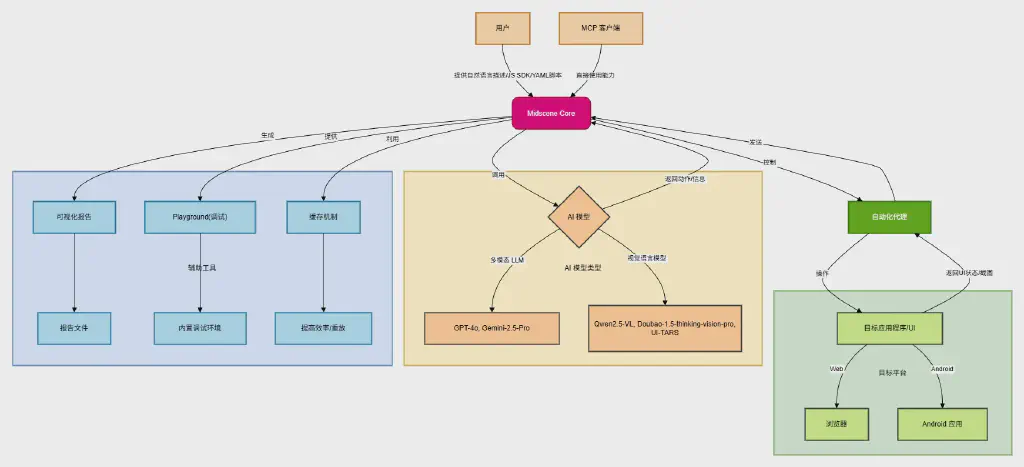
User: The user is the starting point of Midscene, defining automation tasks and goals through natural language descriptions, the JavaScript SDK, or YAML scripts.
MCP Clients: Midscene also supports other MCP clients directly using its capabilities, which indicates that it may have an API or integration point for other systems to call.
Midscene Core: This is the core logic layer of Midscene. It is responsible for parsing user instructions, interacting with AI models, and coordinating automation agents to perform operations. It also manages report generation and caching.
AI Models: Midscene supports multiple AI models, including:
Multimodal LLM: such as GPT-4o and Gemini-2.5-Pro, used to understand more complex instructions and context.
Visual-Language Models: such as Qwen2.5-VL, Doubao-1.5-thinking-vision-pro, and UI-TARS, which are especially recommended for UI automation because they can better understand visual information. The AI model receives requests from Midscene Core and returns instructions to execute actions or retrieve information.
Automation Agent: This is a key execution layer, responsible for actually operating the target application or UI according to the instructions of Midscene Core. It can obtain the UI state and screenshots and feed them back to Midscene Core.
Target Application/UI: This is the actual object of automation operations, which can be:
- Browser: Web automation through tools such as Playwright or Puppeteer.
- Android App: Performing Android automation.
Visual Reports: Midscene provides visual reports to help users understand, replay, and debug the entire automation process.
Playground: The built-in Playground environment allows users to debug through natural language instructions.
Caching Mechanism: Midscene uses a caching mechanism to improve efficiency, allowing scripts to replay more quickly to obtain results.
Main Built-in System Prompts
The intelligent parsing capability of MidScene mainly relies on LLM large models, so when calling the LLM, its configured system prompts are especially critical. By analyzing the source code, we can see that MidScene has set different system prompts for different types of tasks. They are summarized as follows:
1. Task Planning System Prompts
The project contains three different task planning prompts:
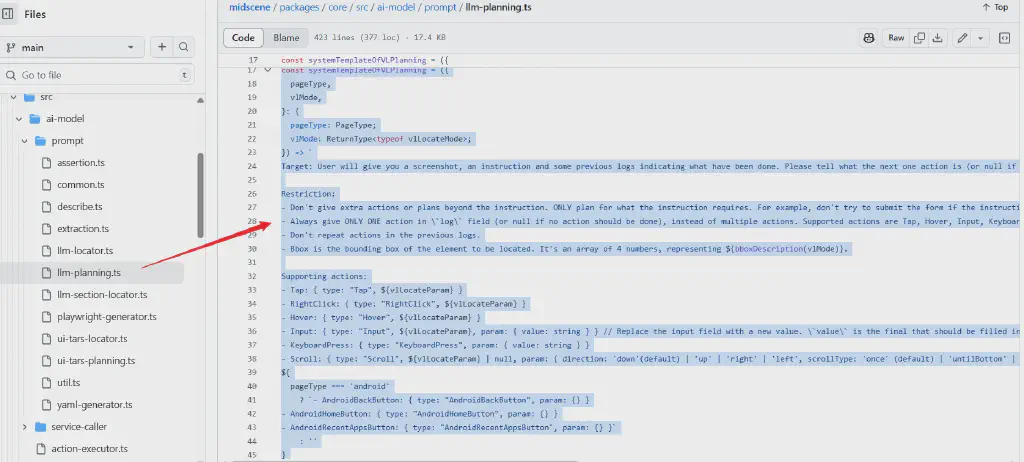
Task planning prompt for traditional LLM models - Used to guide traditional language models to decompose user instructions into a series of executable UI operation actions.
packages/core/src/ai-model/prompt/llm-planning.ts
 1
 2
 3
 4
 5
 6
 7
 8
 9
10
11
12
13
14
15
16
17
18
19
20
21
22
23
24
25
26
27
28
29
30
31
32
33
34
35
36
37
38
39
40
41
42
43
44
45
46
47
48
49
50
51
52
53
54
55
56
57
58
59
60
61
62
63
64
65
66
67
68
69
70
71
72
73
74
75
76
77
78
79
80
| const llmLocateParam = `locate: {{"id": string, "prompt": string}} | null`;
const systemTemplateOfLLM = ({ pageType }: { pageType: PageType }) => `
## Role
You are a versatile professional in software UI automation. Your outstanding contributions will impact the user experience of billions of users.
## Objective
- Decompose the instruction user asked into a series of actions
- Locate the target element if possible
- If the instruction cannot be accomplished, give a further plan.
## Workflow
1. Receive the screenshot, element description of screenshot(if any), user's instruction and previous logs.
2. Decompose the user's task into a sequence of actions, and place it in the \`actions\` field. There are different types of actions (Tap / Hover / Input / KeyboardPress / Scroll / FalsyConditionStatement / Sleep ${pageType === 'android' ? '/ AndroidBackButton / AndroidHomeButton / AndroidRecentAppsButton' : ''}). The "About the action" section below will give you more details.
3. Precisely locate the target element if it's already shown in the screenshot, put the location info in the \`locate\` field of the action.
4. If some target elements is not shown in the screenshot, consider the user's instruction is not feasible on this page. Follow the next steps.
5. Consider whether the user's instruction will be accomplished after all the actions
- If yes, set \`taskWillBeAccomplished\` to true
- If no, don't plan more actions by closing the array. Get ready to reevaluate the task. Some talent people like you will handle this. Give him a clear description of what have been done and what to do next. Put your new plan in the \`furtherPlan\` field. The "How to compose the \`taskWillBeAccomplished\` and \`furtherPlan\` fields" section will give you more details.
## Constraints
- All the actions you composed MUST be based on the page context information you get.
- Trust the "What have been done" field about the task (if any), don't repeat actions in it.
- Respond only with valid JSON. Do not write an introduction or summary or markdown prefix like \`\`\`json\`\`\`.
- If the screenshot and the instruction are totally irrelevant, set reason in the \`error\` field.
## About the \`actions\` field
The \`locate\` param is commonly used in the \`param\` field of the action, means to locate the target element to perform the action, it conforms to the following scheme:
type LocateParam = {{
"id": string, // the id of the element found. It should either be the id marked with a rectangle in the screenshot or the id described in the description.
"prompt"?: string // the description of the element to find. It can only be omitted when locate is null.
}} | null // If it's not on the page, the LocateParam should be null
## Supported actions
Each action has a \`type\` and corresponding \`param\`. To be detailed:
- type: 'Tap'
* {{ ${llmLocateParam} }}
- type: 'RightClick'
* {{ ${llmLocateParam} }}
- type: 'Hover'
* {{ ${llmLocateParam} }}
- type: 'Input', replace the value in the input field
* {{ ${llmLocateParam}, param: {{ value: string }} }}
* \`value\` is the final value that should be filled in the input field. No matter what modifications are required, just provide the final value user should see after the action is done.
- type: 'KeyboardPress', press a key
* {{ param: {{ value: string }} }}
- type: 'Scroll', scroll up or down.
* {{
${llmLocateParam},
param: {{
direction: 'down'(default) | 'up' | 'right' | 'left',
scrollType: 'once' (default) | 'untilBottom' | 'untilTop' | 'untilRight' | 'untilLeft',
distance: null | number
}}
}}
* To scroll some specific element, put the element at the center of the region in the \`locate\` field. If it's a page scroll, put \`null\` in the \`locate\` field.
* \`param\` is required in this action. If some fields are not specified, use direction \`down\`, \`once\` scroll type, and \`null\` distance.
* {{ param: {{ button: 'Back' | 'Home' | 'RecentApp' }} }}
- type: 'ExpectedFalsyCondition'
* {{ param: {{ reason: string }} }}
* use this action when the conditional statement talked about in the instruction is falsy.
- type: 'Sleep'
* {{ param: {{ timeMs: number }} }}
${
pageType === 'android'
? `- type: 'AndroidBackButton', trigger the system "back" operation on Android devices
* {{ param: {{}} }}
- type: 'AndroidHomeButton', trigger the system "home" operation on Android devices
* {{ param: {{}} }}
- type: 'AndroidRecentAppsButton', trigger the system "recent apps" operation on Android devices
* {{ param: {{}} }}`
: ''
}
`;
|
Task planning prompt for visual-language models - Specifically designed for AI models with visual capabilities (such as Qwen-VL and Gemini), able to directly process screenshots and plan the next action.
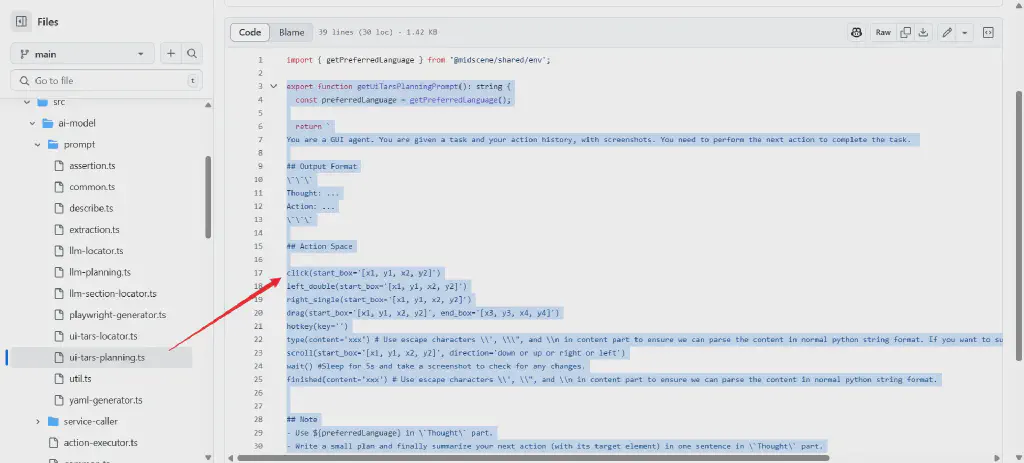
Task planning prompt for the UI-Tars model - A GUI agent prompt specifically designed for UI-Tars, adopting a think-act format.
2. Element Locating System Prompts
Element locating prompt - Used to precisely locate target elements in page screenshots and element descriptions, supporting both traditional LLM and visual-language model modes.
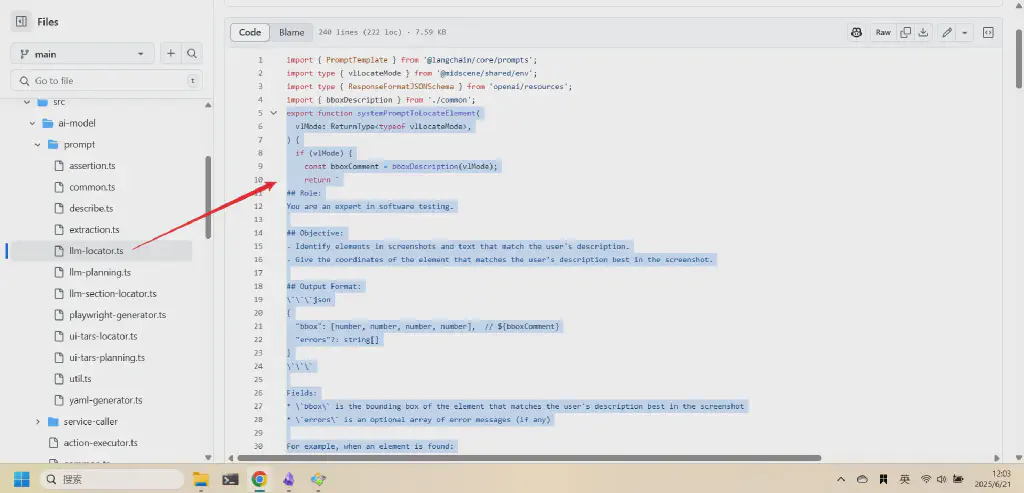
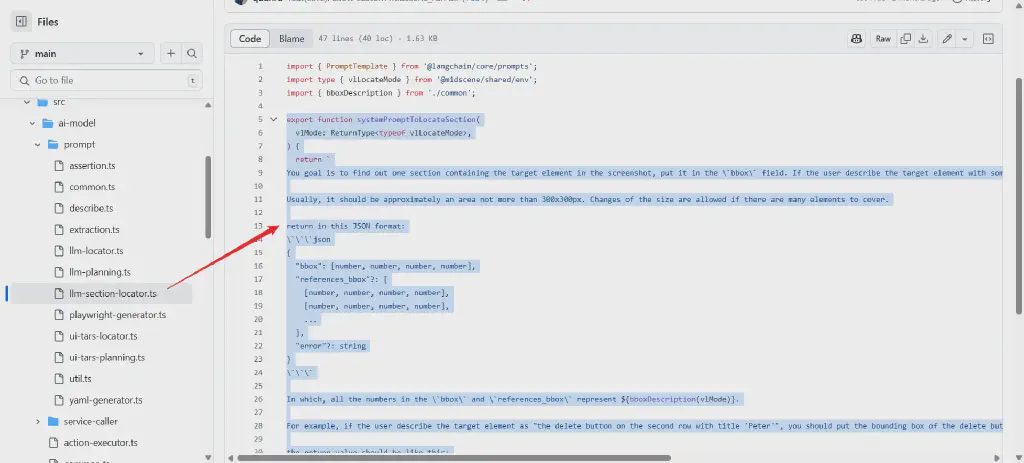
Region locating prompt - Used to locate the page region containing the target element, usually an area no larger than 300x300 pixels.
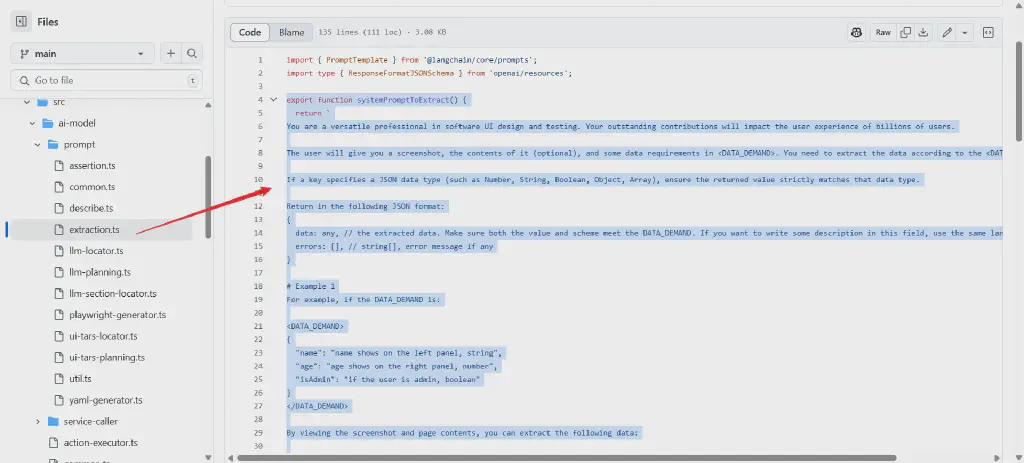
Data extraction prompt - Guides the AI to extract structured data from the UI, supporting multiple data types and format requirements.
4. Assertion Verification System Prompts
Assertion verification prompt - Used to verify whether the page state meets the expected assertion conditions, supporting both the UI-Tars and ordinary model formats.
1
2
3
4
5
6
7
8
| const defaultAssertionPrompt =
'You are a senior testing engineer. User will give an assertion and a screenshot of a page. By carefully viewing the screenshot, please tell whether the assertion is truthy.';
const defaultAssertionResponseJsonFormat = `Return in the following JSON format:
{
pass: boolean, // whether the assertion is truthy
thought: string | null, // string, if the result is falsy, give the reason why it is falsy. Otherwise, put null.
}`;
|
5. Element Description System Prompts
Element description prompt - Used to generate precise element descriptions to help identify specific UI elements in the page (given elements).
 1
 2
 3
 4
 5
 6
 7
 8
 9
10
11
12
13
14
15
16
17
18
| export const elementDescriberInstruction = () => {
return `Describe the element in the red rectangle for precise identification. Use ${getPreferredLanguage()}.
Rules:
1. Start with element type (button, input, link, etc.)
2. Include key identifiers:
- Text content: "with text 'Submit'"
- Visual features: "blue background", "icon only"
- Position: "top-right", "below search bar"
3. Keep description under 20 words
4. Don't mention the red rectangle
Return JSON:
{
"description": "brief element type with key identifiers",
"error"?: "error message if any"
}`;
};
|
6. Code Generation System Prompts
Playwright test code generation prompt - Generates executable Playwright test code based on recorded browser session events.
1
2
3
| // Create system prompt
const systemPrompt = `You are an expert test automation engineer specializing in Playwright and Midscene.
Your task is to generate a complete, executable Playwright test using @midscene/web/playwright that reproduces a recorded browser session.
|
By adopting a modular design for these system prompts, they are dynamically adjusted according to different AI model types (traditional LLM vs. visual-language model) and page types (web vs. Android). The project also includes complete JSON schema definitions to ensure structured and consistent AI output, and supports multi-language environments ${getPreferredLanguage()}
Supplements and Constraints on User Prompts
Beyond the configuration of these system prompts that helps the LLM better understand the current task, the user’s input instructions — namely the user prompts — inevitably require a certain degree of expansion and constraint supplementation during actual processing.
Here we further analyze the handling of user prompts:
1. Intelligent Generation of Background Context
The project adds structured background context to user instructions through the generateTaskBackgroundContext function, including high-priority knowledge and historical execution logs, to prevent repeating the same operations.
 1
 2
 3
 4
 5
 6
 7
 8
 9
10
11
12
13
14
15
16
17
18
19
20
21
22
23
24
25
26
27
28
29
30
31
32
33
34
35
36
| export const generateTaskBackgroundContext = (
userInstruction: string,
log?: string,
userActionContext?: string,
) => {
if (log) {
return `
Here is the user's instruction:
<instruction>
<high_priority_knowledge>
${userActionContext}
</high_priority_knowledge>
${userInstruction}
</instruction>
These are the logs from previous executions, which indicate what was done in the previous actions.
Do NOT repeat these actions.
<previous_logs>
${log}
</previous_logs>
`;
}
return `
Here is the user's instruction:
<instruction>
<high_priority_knowledge>
${userActionContext}
</high_priority_knowledge>
${userInstruction}
</instruction>
`;
};
|
2. Multimodal-Adapted User Prompts
Depending on the capabilities of the AI model, user prompts adopt different formats. For visual-language models, the task background is passed directly; for traditional LLMs, page description information is combined.
 1
 2
 3
 4
 5
 6
 7
 8
 9
10
11
12
13
14
15
16
17
18
19
20
21
| export const automationUserPrompt = (
vlMode: ReturnType<typeof vlLocateMode>,
) => {
if (vlMode) {
return new PromptTemplate({
template: '{taskBackgroundContext}',
inputVariables: ['taskBackgroundContext'],
});
}
return new PromptTemplate({
template: `
pageDescription:
=====================================
{pageDescription}
=====================================
{taskBackgroundContext}`,
inputVariables: ['pageDescription', 'taskBackgroundContext'],
});
};
|
3. Structured JSON Schema Validation
The project uses OpenAI’s structured output schema to strictly constrain the AI’s response format, ensuring that the returned data conforms to a predefined structure, including necessary fields such as actions, log, and error.
  1
  2
  3
  4
  5
  6
  7
  8
  9
 10
 11
 12
 13
 14
 15
 16
 17
 18
 19
 20
 21
 22
 23
 24
 25
 26
 27
 28
 29
 30
 31
 32
 33
 34
 35
 36
 37
 38
 39
 40
 41
 42
 43
 44
 45
 46
 47
 48
 49
 50
 51
 52
 53
 54
 55
 56
 57
 58
 59
 60
 61
 62
 63
 64
 65
 66
 67
 68
 69
 70
 71
 72
 73
 74
 75
 76
 77
 78
 79
 80
 81
 82
 83
 84
 85
 86
 87
 88
 89
 90
 91
 92
 93
 94
 95
 96
 97
 98
 99
100
101
102
103
104
105
106
107
108
| export const planSchema: ResponseFormatJSONSchema = {
type: 'json_schema',
json_schema: {
name: 'action_items',
strict: true,
schema: {
type: 'object',
strict: true,
properties: {
actions: {
// TODO
type: 'array',
items: {
type: 'object',
strict: true,
properties: {
thought: {
type: 'string',
description:
'Reasons for generating this task, and why this task is feasible on this page',
},
type: {
type: 'string',
description:
'Type of action, one of "Tap", "RightClick", "Hover" , "Input", "KeyboardPress", "Scroll", "ExpectedFalsyCondition", "Sleep", "AndroidBackButton", "AndroidHomeButton", "AndroidRecentAppsButton"',
},
param: {
anyOf: [
{ type: 'null' },
{
type: 'object',
properties: { value: { type: ['string', 'number'] } },
required: ['value'],
additionalProperties: false,
},
{
type: 'object',
properties: { timeMs: { type: ['number', 'string'] } },
required: ['timeMs'],
additionalProperties: false,
},
{
type: 'object',
properties: {
direction: { type: 'string' },
scrollType: { type: 'string' },
distance: { type: ['number', 'string', 'null'] },
},
required: ['direction', 'scrollType', 'distance'],
additionalProperties: false,
},
{
type: 'object',
properties: { reason: { type: 'string' } },
required: ['reason'],
additionalProperties: false,
},
{
type: 'object',
properties: { button: { type: 'string' } },
required: ['button'],
additionalProperties: false,
},
],
description:
'Parameter of the action, can be null ONLY when the type field is Tap or Hover',
},
locate: {
type: ['object', 'null'],
properties: {
id: { type: 'string' },
prompt: { type: 'string' },
},
required: ['id', 'prompt'],
additionalProperties: false,
description: 'Location information for the target element',
},
},
required: ['thought', 'type', 'param', 'locate'],
additionalProperties: false,
},
description: 'List of actions to be performed',
},
more_actions_needed_by_instruction: {
type: 'boolean',
description:
'If all the actions described in the instruction have been covered by this action and logs, set this field to false.',
},
log: {
type: 'string',
description:
'Log what these planned actions do. Do not include further actions that have not been planned.',
},
error: {
type: ['string', 'null'],
description: 'Error messages about unexpected situations',
},
},
required: [
'actions',
'more_actions_needed_by_instruction',
'log',
'error',
],
additionalProperties: false,
},
},
};
|
Through these multi-layered enhancement and constraint mechanisms, the AI model is ensured to accurately understand user intent while its behavioral boundaries are strictly controlled. Judging from the definition of the prompts, the project places great emphasis on preventing the AI from hallucinating or performing operations beyond the scope of user instructions, which is crucial for scenarios such as UI automation that require high-precision operations.
Large Model Context Window Limitations
When using various AI large models to complete intelligent tasks, a very important constraint is that large models usually have a context window size limit; historical information exceeding this limit is discarded in order to conserve the resources of the large model and improve performance.
For an automated testing task, however, the execution chain after decomposition is often long and usually exceeds the LLM’s context limit.
So here we further analyze how this project handles the context window limit.
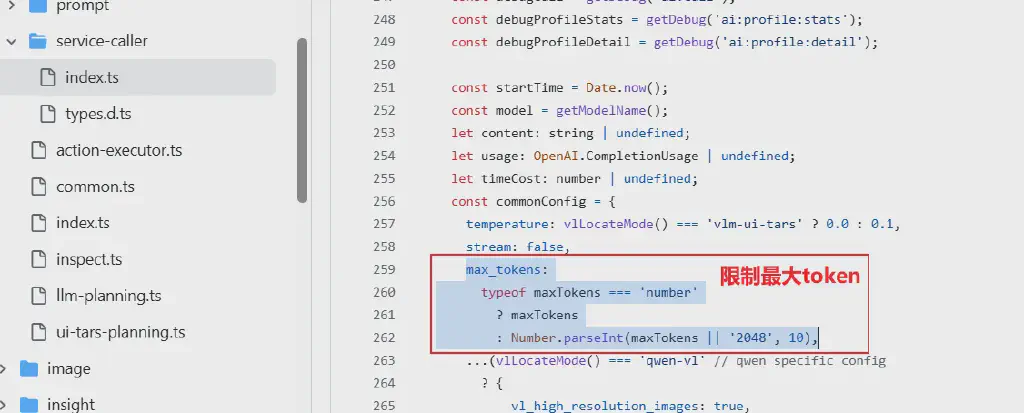
1. Token Count Limit Control
The project sets the maximum number of tokens in the response through the OPENAI_MAX_TOKENS environment variable
2. Image Size Limits and Automatic Adjustment
The project implements image size limits for different models, especially strict size control for the GPT-4o model. When it detects that the image size exceeds the maximum input limit of GPT-4o (2000x768 or 768x2000 pixels), the system issues a warning.
 1
 2
 3
 4
 5
 6
 7
 8
 9
10
11
12
13
14
15
16
17
18
19
20
| let warned = false;
export function warnGPT4oSizeLimit(size: Size) {
if (warned) return;
if (getModelName()?.toLowerCase().includes('gpt-4o')) {
const warningMsg = `GPT-4o has a maximum image input size of 2000x768 or 768x2000, but got ${size.width}x${size.height}. Please set your page to a smaller resolution. Otherwise, the result may be inaccurate.`;
if (
Math.max(size.width, size.height) > 2000 ||
Math.min(size.width, size.height) > 768
) {
console.warn(warningMsg);
warned = true;
}
} else if (size.width > 1800 || size.height > 1800) {
console.warn(
`The image size seems too large (${size.width}x${size.height}). It may lead to more token usage, slower response, and inaccurate result.`,
);
warned = true;
}
}
|
3. Image Compression and Optimization
The system reduces the amount of data transferred through image compression (packages/shared/src/img/transform.ts), including:
- Setting the image quality to 90% to balance quality and file size
- Providing image resizing functionality
- Supporting image processing and conversion in base64 format
4. Choosing the Right Model Architecture
The project supports two different types of AI models to optimize token usage:
General-purpose multimodal LLM (such as GPT-4o): Requires sending both the screenshot and the DOM tree, resulting in higher token consumption.
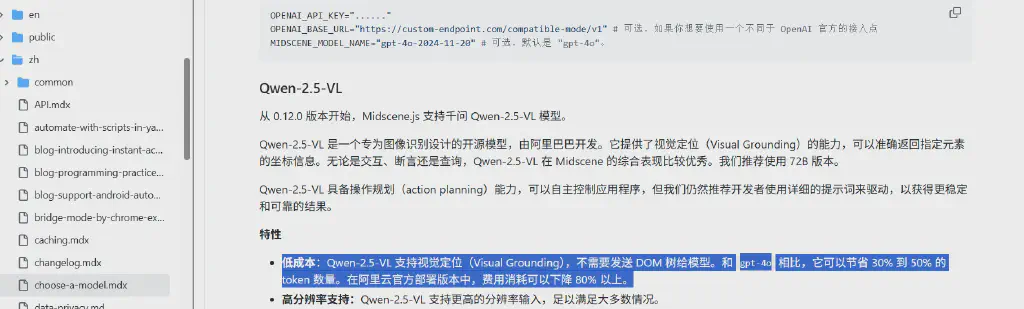
Visual grounding VL model (such as Qwen-2.5-VL): Supports visual grounding and does not need to send the DOM tree, saving 30% to 50% of tokens.
See the explanation in the apps/site/docs/zh/choose-a-model.mdx document
5. Token Usage Monitoring
The project also provides detailed token usage tracking and debugging features, recording prompt tokens, completion tokens, and the total number of tokens.
In summary, the project’s strategy for handling context window limits mainly focuses on three aspects:
- Controlling the input data volume (through image compression and size limits)
- Choosing the right model architecture (VL model vs. general-purpose LLM)
- Monitoring and optimizing token usage
This multi-layered approach effectively reduces the need for large context windows while also maintaining functional completeness.
Memory Management for Long-Chain Tasks
For large models, the memory of completed steps and historical tasks is of great significance for ensuring result accuracy, avoiding unnecessary repetition, and saving costs. As introduced in our previous articles, tools such as Browser-Use bring in memory frameworks like mem0 to implement AI memory capabilities; so how does Midscene handle this aspect?
Based on the analysis of the Midscene code, memory management for long-chain tasks is mainly implemented through the following core mechanisms:
Task Caching Mechanism
Midscene implements an intelligent task caching system to manage the memory of AI operations. This system caches planning results and element location information to avoid repeated AI calls, thereby reducing memory consumption and improving execution efficiency.
packages/web-integration/src/common/task-cache.ts
The caching system supports two types of cache:
- Planning Cache (PlanningCache) is used to store the AI-planned YAML workflows
- Locate Cache (LocateCache) is used to store the XPath information of elements.
Conversation History Management
To prevent the conversation history in long-chain tasks from growing indefinitely and causing memory overflow, Midscene implements an intelligent conversation history management strategy. The system limits user image messages to a maximum of 4 retained entries and adopts a first-in-first-out (FIFO) strategy to automatically clean up old conversation records.
packages/web-integration/src/common/tasks.ts
Replanning Limit Mechanism
To prevent the AI from falling into an infinite replanning loop in long-chain tasks, the system sets a limit on the number of replanning attempts. When the number of replanning attempts exceeds the limit, the task proactively terminates and returns an error message.
1
2
3
4
5
6
7
| while (planningTask) {
if (replanCount > replanningCountLimit) {
const errorMsg =
'Replanning too many times, please split the task into multiple steps';
return this.appendErrorPlan(taskExecutor, errorMsg);
}
|
Resource Cleanup Mechanism
Midscene uses the FreeFn pattern to ensure that all resources — including network connections, temporary files, timers, and so on — are properly cleaned up after a long-chain task is completed. Even under exceptional circumstances, the resource cleanup mechanism guarantees that system resources are released.
packages/web-integration/src/yaml/player.ts
 1
 2
 3
 4
 5
 6
 7
 8
 9
10
11
12
13
14
15
16
17
18
19
20
21
22
23
| freeFn = [
...(newFreeFn || []),
{
name: 'restore-agent-onTaskStartTip',
fn: () => {
if (agent) {
agent.onTaskStartTip = originalOnTaskStartTip;
}
},
},
];
....
// free the resources
for (const fn of freeFn) {
try {
// console.log('freeing', fn.name);
await fn.fn();
// console.log('freed', fn.name);
} catch (e) {
// console.error('error freeing', fn.name, e);
}
}
|
Context Optimization
To reduce memory usage, Midscene also implements several context optimization strategies:
- Visible element filtering: Only extract the visible elements on the page, reducing the size of the DOM tree
- Image compression: Intelligently compress screenshots to reduce memory and transmission overhead
- Viewport cropping: Crop context data according to the viewport range
It can be seen that although Mdscene has not introduced a dedicated memory framework to handle historical memory, it has nevertheless established a memory management mechanism to handle this collaboratively, enabling Midscene to maintain efficient memory usage when processing complex long-chain tasks. Through conversation history management to control memory growth, replanning limits to prevent infinite loops, and resource cleanup to ensure system stability, it ultimately achieves a reliable long-chain task execution system.
 1
 2
 3
 4
 5
 6
 7
 8
 9
10
11
12
13
14
15
16
17
18
19
20
21
22
23
24
25
26
27
28
29
30
31
32
33
34
35
36
37
38
39
40
41
42
43
44
45
46
47
48
49
50
51
52
53
54
55
56
57
58
59
60
61
62
63
64
65
| graph TD
A[User] -->|Provide natural language description/JS SDK/YAML script| B(Midscene Core)
B -->|Call| C{AI Model}
C -->|Return action/info| B
B -->|Control| D[Automation Agent]
D -->|Operate| E[Target App/UI]
E -->|Return UI state/screenshot| D
D -->|Send| B
B -->|Generate| F[Visual Reports]
B -->|Provide| G[Playground<Debug> ]
B -->|Use| H[Caching Mechanism]
subgraph Target Platforms
E -- Web --> E1[Browser<Playwright/Puppeteer>]
E -- Android --> E2[Android App]
end
subgraph AI Model Types
C -- Multimodal LLM --> C1[GPT-4o, Gemini-2.5-Pro]
C -- Visual-Language Model --> C2[Qwen2.5-VL, Doubao-1.5-thinking-vision-pro, UI-TARS]
end
subgraph Auxiliary Tools
F --> F1[Report Files]
G --> G1[Built-in Debug Environment]
H --> H1[Improve efficiency/replay]
end
I[MCP Clients] -->|Use capabilities directly| B
|