
Introduction
In our daily work, if you use Windows, making good use of batch commands, especially for bulk file and text processing, can greatly boost productivity and get twice the result with half the effort!
However, many people’s use of batch scripts stops at combining several commands to run together, saving the time of repeatedly typing commands and waiting. This is actually just the most basic way to use batch scripts.
But to unlock the full power of batch scripts, the for command is truly the core. As a tool that handles both loop processing and text-column processing, nothing rivals it when it comes to improving batch script efficiency!
Yet the for command is relatively complex to use, and many people may not have mastered it well. So in this article, we bring you a systematic introduction to this core command in batch scripting.
There’s also an Easter egg that Qiucao discovered: Microsoft actually has an official, long-standing bug that has never been fixed 😂😂😂
Introduction to the For Command
Let’s now take a detailed look at this heavyweight command in Windows batch scripting.
Basic Syntax
| |
- %variable: the for-loop variable; use
%%in batch scripts and%when running directly from the command line - (set): can be a file, a directory, a string, or command output..
- command: the command to execute for each iteration.
- command-parameters: control loop behavior (such as
/R,/D,/L,/F, etc.)
For example, to iterate over a set:
| |
Output:
| |
- Note: by default, elements are separated by spaces, and a quoted string is treated as a whole.
** The /R Option: Recursively Traverse Files**
This option is used to recursively traverse files in a directory and its subdirectories.
| |
Features:
- Traverse all
.txtfiles underC:\Chengxiaqiucaoand its subdirectories. %%awill contain the full file path (e.g.C:\Chengxiaqiucao\test\file.txt).
/D: Process Directories
This option traverses directories only (not files).
| |
Features:
- List all first-level directories under
C:\(such asProgram Files,Users, etc.).
4. /L: Generate a Number Sequence
This option is similar to controlling the number of loop iterations when programming.
Syntax: for /L %%a in (start, step, end)
The following example generates an arithmetic sequence:
| |
Output:
| |
/F: Advanced Text Parsing (The Core Option)
This option can be considered the most core option of the For command; in most cases, it’s what lets the For command truly shine.
It is mainly used to parse text, strings, or command output line by line, and it supports complex rules.
Syntax:
| |
- Data source: a file, a string, or command output (wrapped in backticks
`). - Options:
delims,tokens,skip,eol,usebackq, etc.
Common Options of /F
| Option | Purpose | Example |
|---|---|---|
delims=xyz | Define delimiters (default space/tab) | delims=, split by comma |
tokens=n | Extract the nth column (separate multiple columns with commas, e.g. 1,3) | tokens=2 extract the second column |
skip=n | Skip the first n lines | skip=2 skip the first two lines |
eol=; | Define the line comment character (default ;) | eol=# ignore lines starting with # |
usebackq | Change how the data source is quoted (see below) | Handle paths with spaces or command output |
The Role of usebackq
Easter Egg Here: A Bug in the Official Documentation
In the Chinese official Windows help, the description of the -F option is actually wrong.
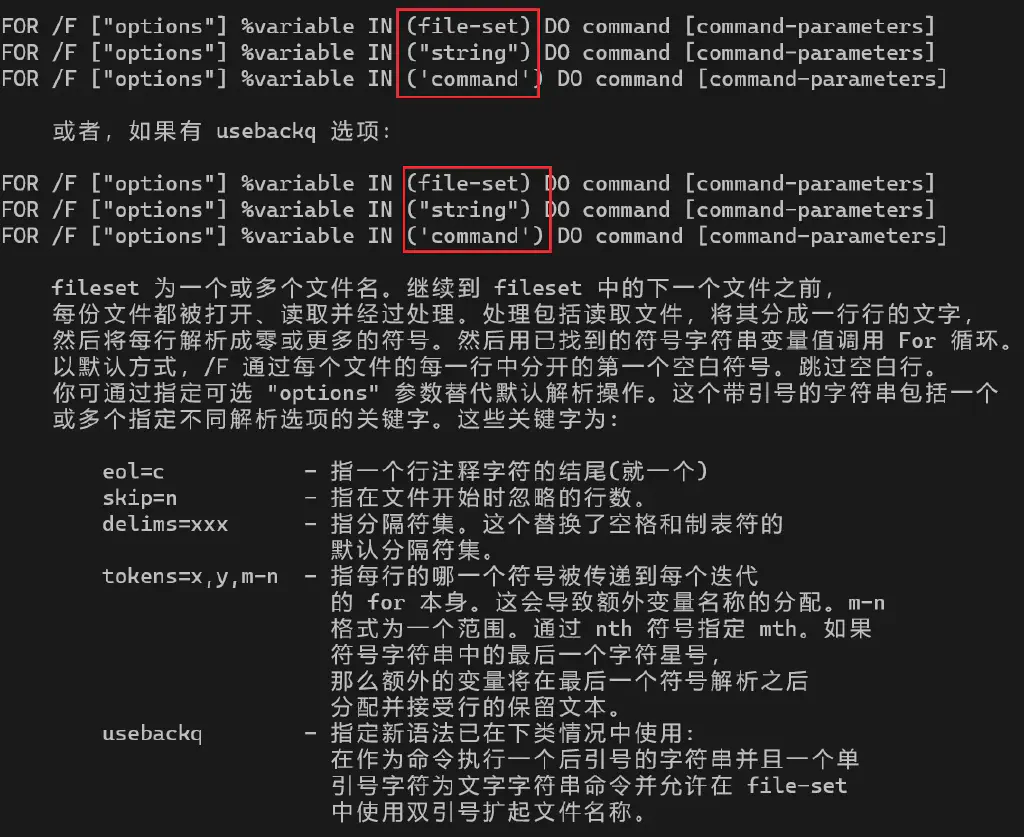
As you can see, the description here for using usebackq is exactly the same as for not using it, and the Chinese translation is very awkward and hard to understand.
However, by running the chcp 65001 command to switch the command-line code page to UTF-8, the help is then displayed in English.
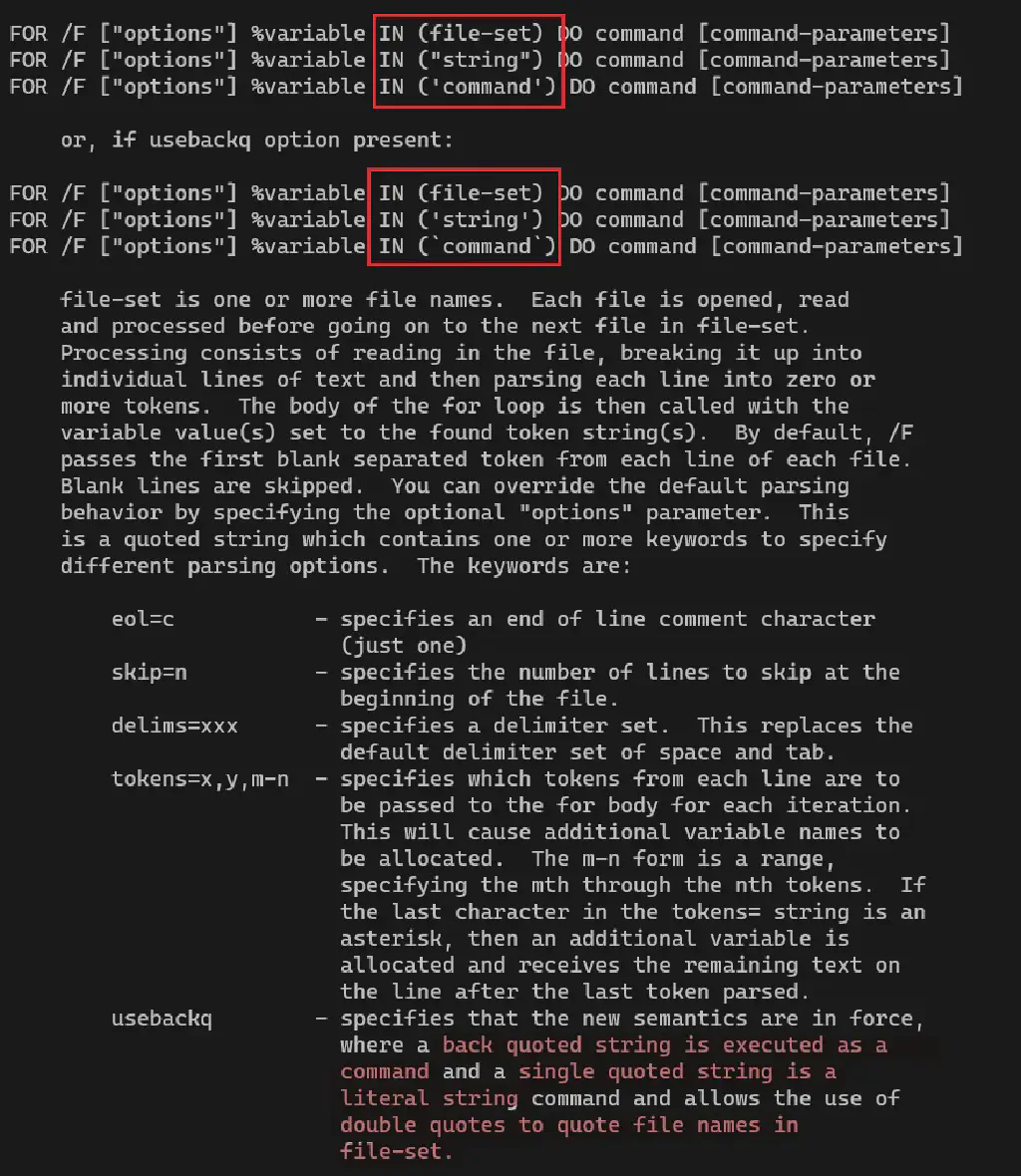
As you can see, this is much clearer. usebackq solves the problems in the following scenarios:
- Handle file paths with spaces: quote the filename with double quotes.
- Execute a command and parse its output: quote the system command with backticks
`. - Parse a string directly: quote the string with single quotes
'.
Case 1:
| |
- Without
usebackq, the spaces in the path would cause a parsing error.
** Case 2**
Parse data.csv (format: name,age,city), skip the header line, and extract the name and city.
Input file data.csv:
| |
Batch script:
| |
Output:
| |
Application Scenario Summary
| Option | Applicable Scenario | Typical Command Example |
|---|---|---|
| None | Iterate over a simple list of files or strings | for %%a in (*.txt) do echo %%a |
/R | Recursively process files under a directory | for /R %%a in (*.log) do del %%a |
/D | Process directories only | for /D %%a in (C:\*) do echo %%a |
/L | Generate a number sequence (e.g. a fixed number of loops) | for /L %%a in (1,1,5) do echo %%a |
/F | Parse text files, command output, or complex strings | for /F "tokens=2" %%a in (data.txt) |
So by mastering these options and techniques of the For command, you can fully turn it into a “Swiss Army knife” for handling files, text, and system tasks in batch scripts.