Preface
Regular Expression is a powerful language for describing text patterns. It uses concise combinations of symbols to describe complex string-matching rules. It is widely used in data validation, text extraction, log analysis, and other fields, and plays an important role in our daily work.
In the software industry, whether you have mastered regular expressions is often an important marker that separates a rookie from a veteran. In this article, we walk through the application of regular expressions with concrete examples so you can leave the beginner stage behind as soon as possible.
Core Syntax of Regular Expressions
To learn regular expressions, a very intuitive online validation platform is recommended here, https://regex101.com , which is very helpful for practicing and mastering regex syntax.
Ordinary Characters and Special Characters
A regular expression is a matching rule. Naturally, it can first match all kinds of ordinary characters, mainly Chinese and English words, letters, and digits. In addition, regular expressions reserve many special characters, such as * ? + . () [] $ ^ \ |, which represent special matching rules. When we need to treat these special characters as ordinary characters to be matched, we need to use the \ symbol to escape them, so \ is also called the escape character. For example, \? will match a ? character in the target text, and \\ will match a \ character in the target text
Quantifiers
Quantifiers are symbols used to control the number of matches:
*zero or more times (e.g.a*can match “”, “a”, “aa”)+one or more times (a+must have at least one a)?zero or one time (a?can match "" or a){n}matches exactly n times ({4}matches 4 times){m,n}matches m to n times (inclusive){m,}matches m or more times{,n}matches zero to n times
In addition, there are two matching modes in regular expressions
- Greedy mode: this is the default mode, which matches the longest possible run of characters that fit the rule in the target text
- Lazy mode: if a
?is added after a quantifier, it marks a lazy match, that is, matching as few characters as possible that fit the rule
For example:
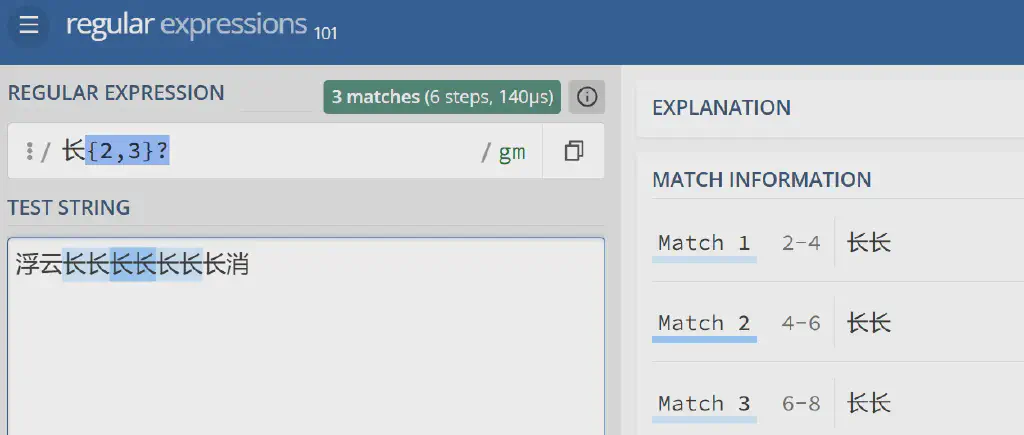
浮云长长长长长长长消
This couplet contains 7 长 characters. The regular expression 长{2,3}, in the default greedy mode, will match 长长长 2 times, while 长{2,3}? matches as few characters as possible and will match 长长 3 times
Metacharacters
Besides quantifiers, there is another class of metacharacters, the fundamental special symbols reserved to build regular expressions:
\dmatches a digit (equivalent to[0-9])\Dmatches a non-digit\wmatches a word character, including letters, digits, and underscore (equivalent to[A-Za-z0-9_])\Wmatches a non-word character\smatches a whitespace character (space/tab/newline)\Smatches a non-whitespace character.matches any single character (by default it does not match a newline)|means logical “or”
Position Anchors
Used to precisely locate the matching position:
\bmatches a word boundary (e.g.\bcat\bmatches a whole word)\Bmatches a non-word-boundary^matches the start of the target text, and in multiline mode also matches the start of a line$matches the end of the target text, and in multiline mode also matches the end of a line
For example:
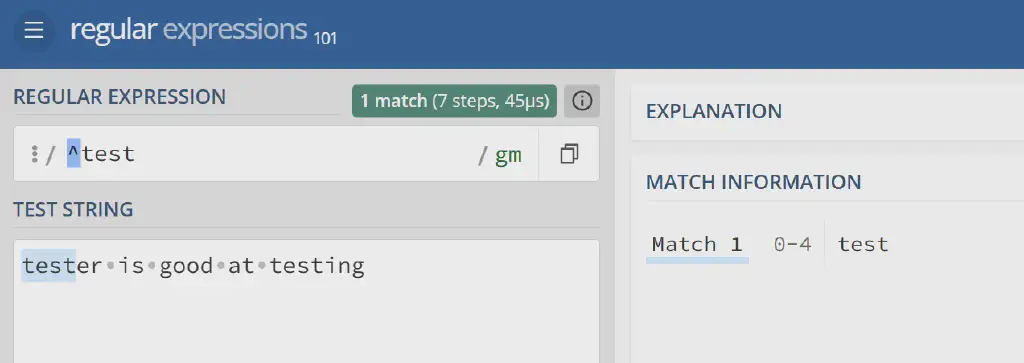
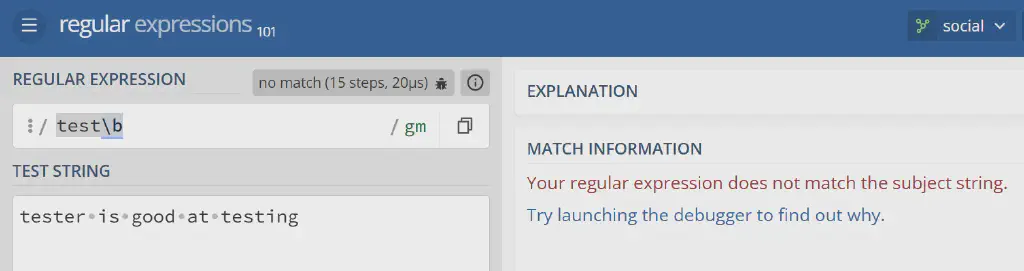
In tester is good at testing, using ^test will only match the test at the start of the line, but the test in testing will not be matched; and if test\b is used, it still matches nothing, because in this text test is never a standalone word and there is no word boundary after test
Character Classes
Character classes are used to batch-match a specific set of characters:
[abc]matches any one of a/b/c[^abc]matches characters not in the set- Range notation:
[a-z](lowercase letters),[A-Z](uppercase letters),[0-9](digits)
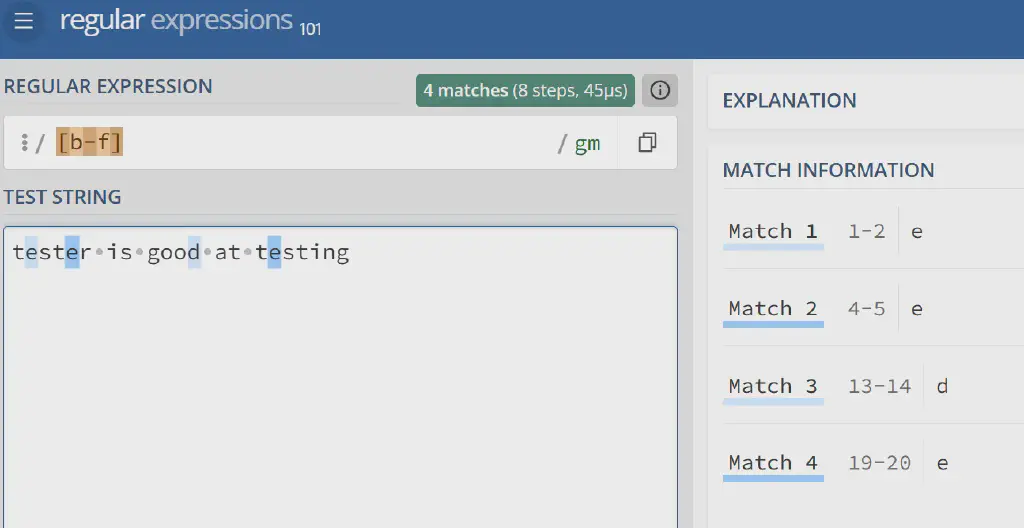
In the following example, [b-f] matches only the d,e in the target string
Groups
Grouping is an important technique in regular expressions. It groups matching rules so that matched content can be extracted in subsequent text processing. A group is denoted by enclosing a pattern in () within the expression.
For example, specify a string
| |
Groups and Their References
Groups are numbered starting from 1 by default, that is, when there are multiple groups, they can be back-referenced in order with \1 \2
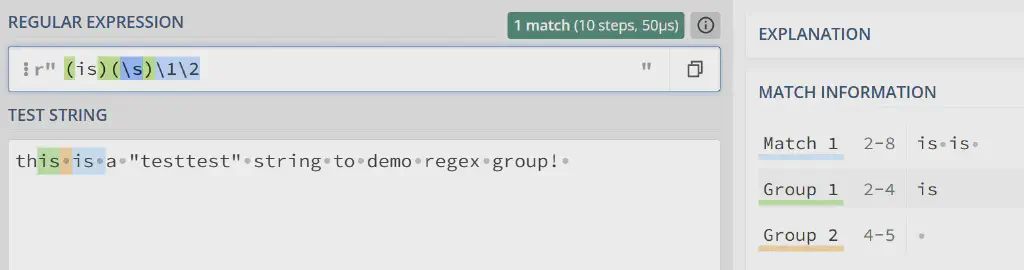
In this example, we specify two groups with (is)(\s)\1\2, group 1 matches “is”, group 2 matches a whitespace character (here a space), and then \1\2 references these two groups respectively; in effect it matches the case where "is"+space appears twice in a row
Marking a Group as Non-Capturing
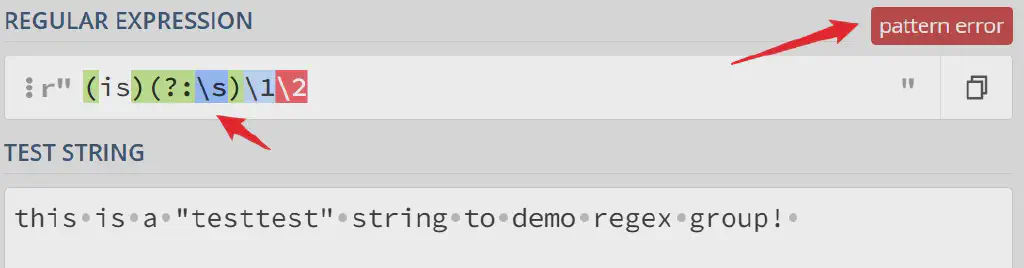
When we group, if we do not want a certain group to be referenced later, we can use (?:pattern) to mark it, specifying that the current group will not be referenced later. This group is then ignored in the default capture numbering and is not assigned a number.
In the above example, if we specify that the second group is not to be referenced
| |
Then the regular expression in the above example actually has a syntax error and cannot complete the match, because the second group is ignored while \2 references it, which causes a pattern error due to its absence
Adding Comments to Groups
For some complex regular expressions, we can also add comments to a group to explain the regular expression (?#comment)(other group)
Naming Groups
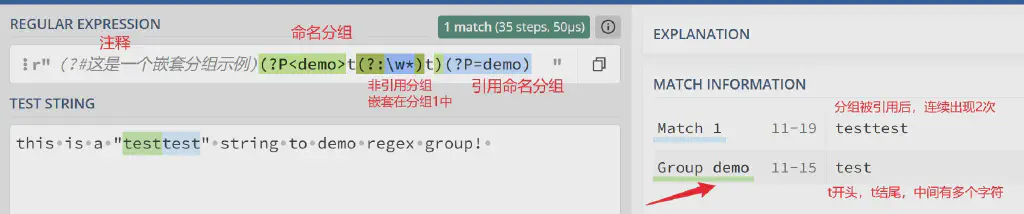
Besides referencing groups by their default numeric index, you can also name a group: (?P<name>pattern).
Then reference it with (?P=<name>)
Based on the above, use the following regex as an illustration
| |
Assertions
Assertions are mainly used for judgment, to match the position of characters that fit a pattern. Because they mainly judge positions and do not consume characters, they are generally also called zero-width assertions
Assertions can be divided into 4 categories, still using the text from the above example
| |
Positive Lookahead Assertion
Judges that the characters after the matching position fit the pattern, asserted with (?=pattern)
Example:

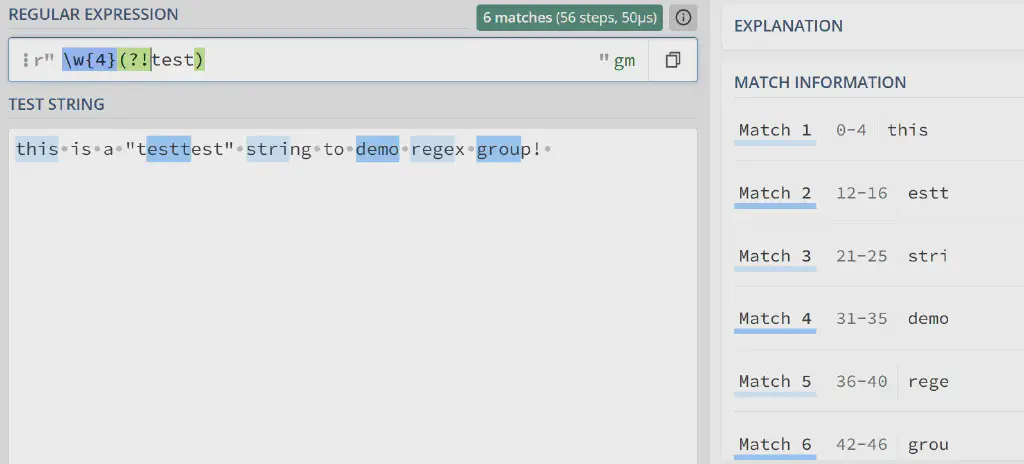
Negative Lookahead Assertion
Judges that the characters after the matching position do not fit the given pattern, asserted with (?!pattern)
Example:
Positive Lookbehind and Negative Lookbehind Assertions
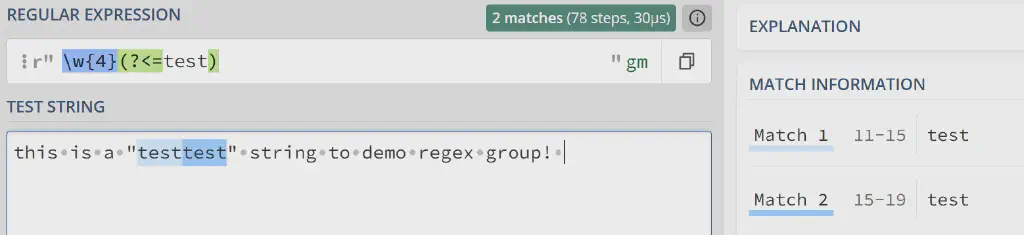
Opposite to lookahead, lookbehind assertions match whether the characters before the expected position fit a pattern, and also come in positive and negative forms. Adding a < after the ? indicates lookbehind, namely (?<=pattern) and (?<!pattern)
Matching Modes
Besides the main matching rules of regular expressions above, regular expressions also have some matching modes. They are represented by \ plus some special letters for different modes
\gindicates global matching, that is, it matches all qualifying substrings in the given text; if not specified, it only matches the first substring that fits the pattern\mmultiline mode, mainly specifies whether^ $match the start and end of a line\iignore case when matching\xwhether to ignore whitespace in our pattern text when matching, useful when writing more complex rules\sspecifies that.includes the newline character when matching characters\umatches unicode characters, such as Chinese\amatches only ascii characters
Practical Cases
For the following text:
| |
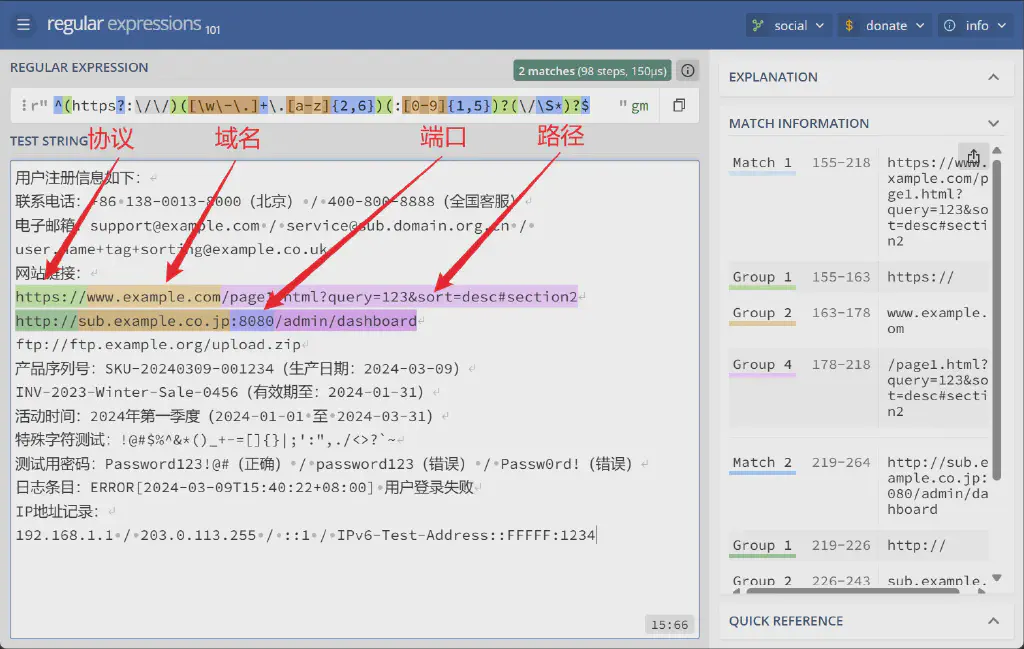
Matching a Complete URL (Including Protocol, Domain, Port, and Path)
| |
Matching result:
Extracting Phone Numbers
| |
Explanation: first \b matches a word boundary, a group extracts the country code (2-3 digits, compatible with the + case), followed by - or a space, in lazy mode, then matches the case where 3-4 digits and - appear consecutively multiple times
Matching result:
+86 138-0013-8000400-800-8888
Validating Email Addresses
| |
Matching result:
support@example.comservice@sub.domain.org.cnsorting@example.co.uk
Capturing Product Serial Numbers (Including Date and Unique Code)
| |
Matching result:
SKU-20240309-001234INV-2023-Winter-Sale-0456
Matching Chinese Characters
| |
Parsing the Timestamp in a Log Entry
| |
Group extraction result:
2024-03-09T15:40:22+08:00
Extracting IP Addresses
| |
Matching result:
- 192.168.1.1
- 203.0.113.255
Conclusion
The above is a summary of regular expressions and a demonstration of some cases. For more on systematically improving your testing skills, follow my course and reply with outline to get the detailed syllabus.