Preface
As an ambitious test engineer, with agile practices now in full swing, you need to work closely with developers. Tasks such as supporting unit testing and integration testing require you to confront the development code directly. Moreover, the test automation you build is itself code, so code management has in fact become an indispensable skill for testers today.
And in the course of this love-hate relationship with developers, diving straight into the code repository to see what shady dealings have been written that dare not face testing is also an advanced technique for in-depth testing.
But the first hurdle here is dealing with the code repository. So in this article we will take a look at today’s most mainstream code branch management tool, Git, and how to operate a code repository in the right way.
What Is Git?
Git was created by the celebrated Linus Torvalds, universally known as the famous father of Linux.

Although Linux achieved tremendous success and attracted a large number of developers to the project, in the early days, as the manager of the Linux project, Linus still merged everyone’s code mainly by hand, without the help of any code management tool.
It was not that Linus liked this approach, but rather that he was extremely picky about code version management tools; commercial ones like clearcase and open source ones like CVS, SVN, and so on all failed to meet his expectations for code branch management.
It was not until 2002 that Linus settled on a commercial distributed version control system, BitKeeper; and given Linux’s enormous appeal, BitKeeper was willing to let the Linux community use it for free. But in 2005, a community developer reverse-engineered BitKeeper without permission and made use of its undisclosed interfaces, which led BitKeeper to revoke the community’s free usage rights.
Back to square one, Linus then decided to develop his own code version control system. The basic requirements for this system were:
- Speed
- Simple design
- Support for a large number of parallel development branches
- Fully distributed
- The ability to efficiently manage very large-scale projects like the Linux kernel
Then, with the efficiency of a true master, Linus took only 10 days to release the first version of Git. And he gave this version a slightly mocking name — Git (in English slang it means “an unpleasant person”).
The name “git” was given by Linus Torvalds when he wrote the very first version. He described the tool as “the stupid content tracker” and the name as (depending on your way)
Of course, after Linus released the first version of Git, other interested members of the community (Junio Hamano) began to participate and gradually took over Git’s day-to-day maintenance, while Linus continued to devote most of his energy back to maintaining the Linux kernel.
Git vs SVN
Before Git, the most popular code version management tool was probably SVN.
It is not that SVN has major flaws, but the application scenarios of Git and SVN do differ considerably. Here is a table for comparison
| Feature | Git | SVN |
|---|---|---|
| Branch | Lightweight branches, fast to create | A branch is a full copy of the repository |
| Branch merging | Fast-forward merges, fast merging | Manual merging of changes required |
| Distributed | Yes, designed to be distributed | No, no full distribution support |
| Snapshot | Stores snapshots of changes | Stores file differences |
| Speed | Fast, distributed design | Slow, centralized design |
| Access control | Controlled via Git Hooks and Gitolite | Controlled via hook scripts |
| Learning curve | Steeper, requires understanding commands and concepts | Gentler, easy to get started |
| Tags | Lightweight tags, can be modified later | Immutable static tags |
| History | Retains full history | Retains only recent history |
| Merge conflicts | Require manual resolution | Automatically attempts resolution, manual intervention when conflicts arise |
| Command-line tool | Yes, a powerful and flexible Git CLI | Relatively simple, mainly used to manage and operate the repository |
Overall, Git is now more popular and its surrounding ecosystem is more mature, so it has gradually become the most mainstream version control tool today
How Git Works
So how exactly does Git work?
Architecturally, Git is actually a three-layer architecture,
- Working directory: This is the actual directory where the project files reside. Modifications made to files in the working directory are considered to be in an “untracked” state until an explicit commit operation is performed.
- Staging area: The staging area acts as a buffer zone between the working directory and the
.gitdirectory. Files in the staging area are in a “staged” state so that they can be included in the next commit. It is the means that allows you to select and control changes. - Local repository: That is, the
.gitdirectory. It is the core container of the Git version control system, containing various metadata, the object database, and configuration information. The.gitdirectory stores the snapshots of commits, manages the project’s history, and accepts Git’s various operational commands.
In addition to these three layers of local code management, there is also the concept of a remote repository, used for collaboration among different members on the same project code.
- Remote repository: A remote repository is a central repository for team collaboration, ensuring code synchronization and coordination through push, pull, merge, and other operations.

Combining the architecture above with the main Git operation commands, let us understand how Git works:
- First, we use
git initorgit cloneto set up a local Git repository, which will contain the.gitlocal repository directory. - Code newly added or modified locally is at this point actually in the
untrackedstate - Running the
git add .command causes the relevant changes to enter thestaging area, with the corresponding state beingstagedormodified - Then running the
git commitcommand submits the changes from the staging area into the local repository, with the corresponding state beingcommitted git diffis the command for viewing changes; as you can see, it actually compares the difference between the working directory and the staging area, whilegit diff HEADcompares the local repository with the working directorygit pushsubmits the contents of the local repository to the remote repositorygit fetchis used to synchronize the remote repository to the local repository- The
git pullwe commonly use directly pulls the remote repository down into the local working directory
Common Git Commands
Here I borrow a Chinese-language Git cheatsheet for quick reference.
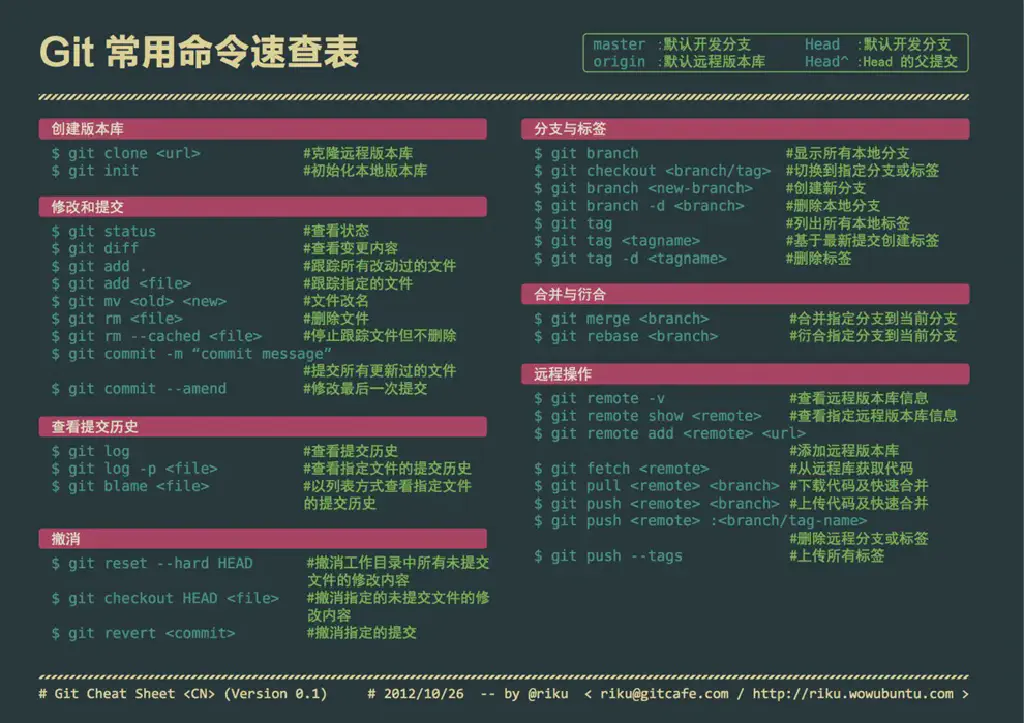
The detailed usage of the commands will not be listed here; the core commands are mainly just the few mentioned in the schematic diagram above.
For further study, you can also make use of online learning tools. Here is one I recommend: