
Featured image of post Detailed Guide to Using Selenium Manager

Detailed Guide to Using Selenium Manager

Selenium added the Selenium Manager tool in V4; what does it do?

Selenium was born in 2004. With its open source nature and comprehensive features, it has long ranked Top1 in the field of Web test automation tools, and is currently the most mainstream Web test automation tool. Moreover, Selenium’s core Webdriver serves as the prevailing W3C standard and is widely referenced by various tools. It can be said to be the de facto standard for web test automation today.

Changes Brought by Selenium 4

After years of evolution, Selenium itself has now been released up to version V4.24. Although usages and materials related to the V3 version are still widely circulated online, Selenium 4 is actually a very major update. Several of its core components have undergone extensive refactoring.

  • WebDriver switched from the original Json Wire Protocol to the W3C standard definition
  • Selenium IDE completed its refactoring and feature optimization
  • Selenium Grid completed its refactoring and supports a more flexible cloud service architecture

In addition, Selenium 4 introduced a very important tool, which is the Selenium Manager we are going to focus on in this article (it was actually introduced only in V4.6, and its features were basically complete only by V4.12

Problems Caused by the Original Browser Driver Approach

To understand Selenium Manager, we still need to first understand how Selenium works.

How Selenium Works

The figure below is the basic architecture of Selenium’s local execution given on the official site. How Selenium Works
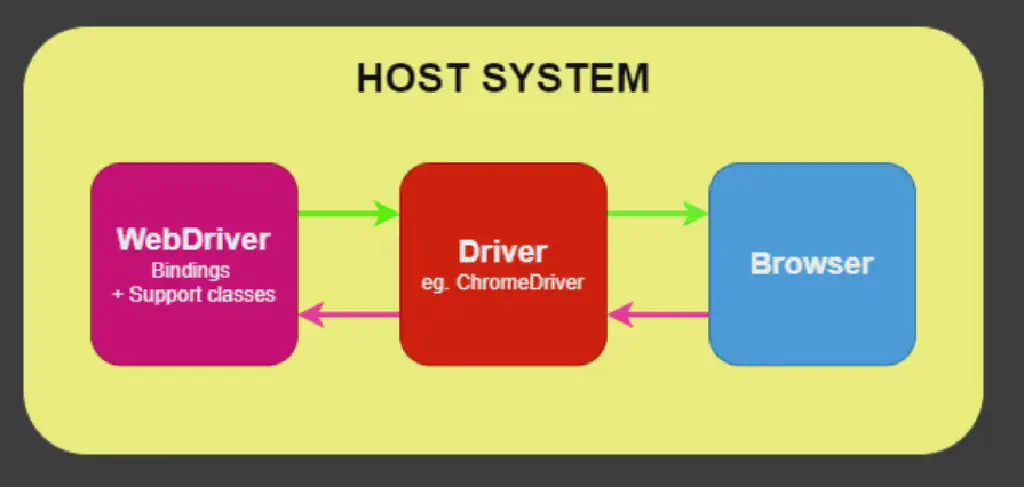
As can be seen, Selenium actually accomplishes automation by driving different types of browsers (Chrome, Firefox, IE, Edge, Safari, etc.) through the webdriver protocol to complete specified actions, thereby achieving the goal of automated execution.

The key to driving a browser is the browser Driver that corresponds to the browser, such as ChromeDriver for Chrome, GecoDriver for FireFox, and so on.

And Selenium itself interacts with the browser Driver based on the WebDriver protocol.

The Problems It Causes

Although this architecture and working principle are clear, there is one problem: browser versions are constantly being updated. And the browser driver version needs to match the browser version; when mismatched driver and browser versions work together, various unexpected exceptions may occur. Therefore, for Selenium to work properly, before writing code with the Selenium library, the first thing is to ensure the deployment and matching of the browser driver and browser versions.

But browser versions and their corresponding drivers are usually maintained by the browser vendors.

So preparing the test automation environment here becomes rather complicated: you need to install the browser of the corresponding version under test, and at the same time find the driver corresponding to that version, then configure the relevant paths for Selenium, and only then can Selenium complete normal driving.

In addition, browser versions generally also have an auto-update feature. It may happen that, without the user noticing, the version has already changed, but at that time the driver version is not updated synchronously, so this also leads to the potential problem of driver and browser version mismatch.

This problem was actually not well resolved for a long time. With Selenium 3 and the early versions of Selenium 4, when we deployed a Selenium automation environment, obtaining and matching browser versions and driver versions was always a rather troublesome task, and because of this it discouraged quite a few test automation beginners.

Chrome’s Response to the Driver Problem

Since this problem has existed for a long time, browser vendors have also actually realized the troubles that a mismatch between driver and browser versions brings to test automation.

Taking Chrome as an example, if we go to the official ChromeDriver downloads page, we will see a page like this
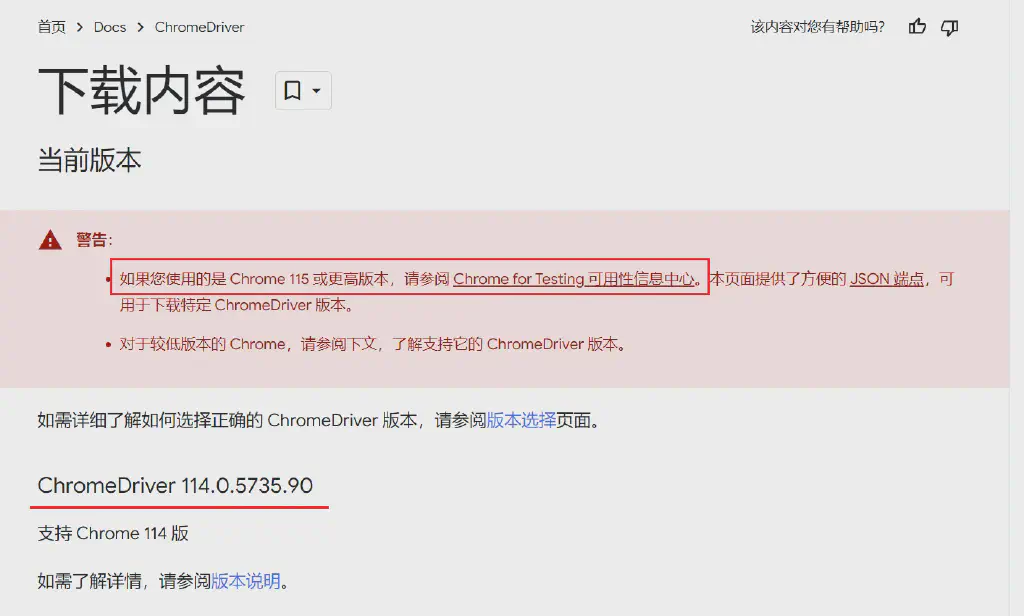
As can be seen, Chrome Driver downloads here are only provided up to version 114, while the latest Chrome has actually already reached version 128. For versions after 115, the Chrome browser actually adjusted the driver release strategy, that is, Chrome driver is released in sync with the Chrome for Testing version, strictly ensuring the synchronous matching of driver and browser versions.

So why is there a Chrome for Testing version here?
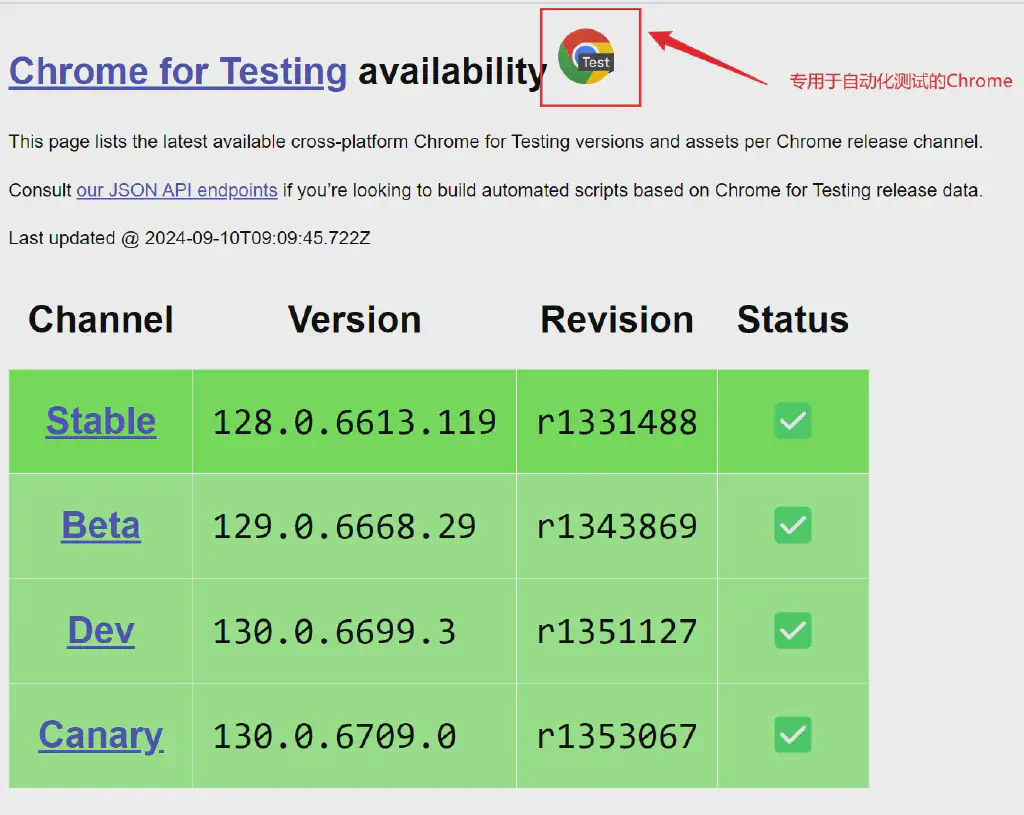
As we mentioned earlier, browser versions have auto-update; if an auto-update happens, the driver version is not updated synchronously, thus causing a mismatch between driver and browser.

So the main difference between Chrome for Testing and the official version is actually that the for Testing version does not perform auto-updates.

In this way, together with the sharing of version numbers with the browser version, it is very convenient to ensure consistency between the browser and the driver.

Selenium’s Solution to the Driver Matching Problem

The above is the solution given by browsers to the driver matching problem, but it still does not completely solve the problem that the browser and Driver need to be obtained and specified separately. So Selenium’s official solution to this problem is Selenium Manager. It is actually an executable program included in the Selenium library, requiring no additional installation.
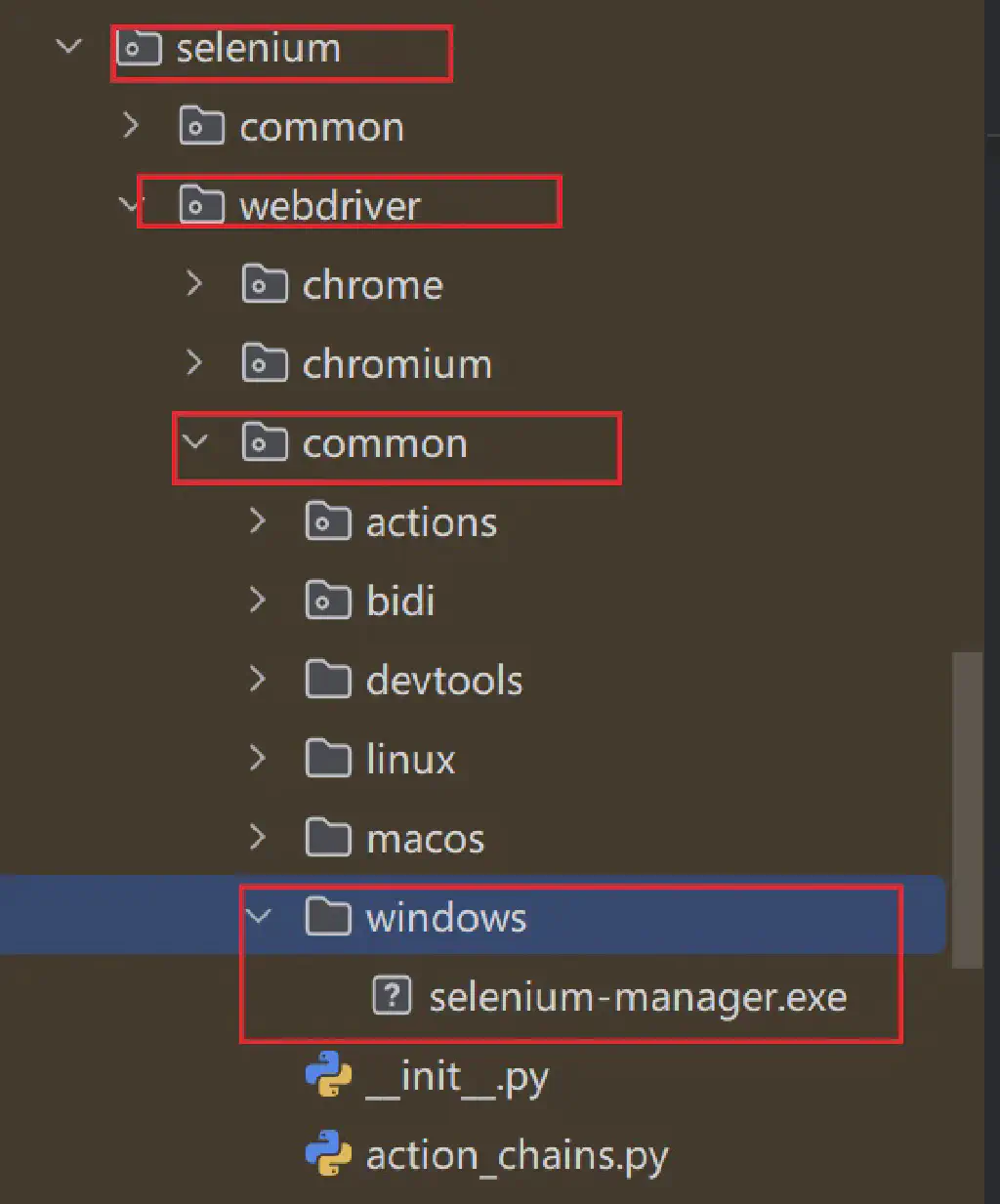
If we currently use Selenium V4 to execute a simple test automation script:

For example, to search for the Chinese phrase 城下秋草 测试 on Baidu, the code is as follows:

 1
 2
 3
 4
 5
 6
 7
 8
 9
10
11
12
13
14
15
from selenium import webdriver  
from selenium.webdriver.common.by import By  
from time import sleep
  
def test_baidu_search():  
    option = webdriver.ChromeOptions()  
    option.browser_version = '117'  
    driver = webdriver.Chrome(options=option)  
  
    driver.get("https://www.baidu.com")  
    driver.find_element(By.ID,'kw').send_keys('城下秋草 测试')  
    sleep(2)  
    driver.find_element(By.ID,'su').click()  
    sleep(3)  
    driver.close()

As long as the Selenium library is installed, when executing, it can drive normally, without any special need to obtain the driver and configuration.

Source Code Analysis of Selenium 4 Launching Automation Execution

Here we analyze its startup process from Selenium’s Python source code:

driver = webdriver.Chrome(options=option)

This line of code actually calls the webdriver initialization code for the Chromium-based browser in the Selenium library, located at .venv/Lib/site-packages/selenium/webdriver/chromium/webdriver.py

During initialization, as can be seen, the DriverFinder method is used to obtain the paths of the browser and the Driver

1
2
3
4
5
6
7
finder = DriverFinder(self.service, options)  
if finder.get_browser_path():  
    options.binary_location = finder.get_browser_path()  
    options.browser_version = None  
  
self.service.path = finder.get_driver_path()  
self.service.start()

And the method for obtaining the paths actually calls the binary_paths method of the SeleniumManager module

 1
 2
 3
 4
 5
 6
 7
 8
 9
10
11
12
13
14
15
16
17
18
19
20
def get_browser_path(self) -> str:  
    return self._binary_paths()["browser_path"]  
  
def get_driver_path(self) -> str:  
    return self._binary_paths()["driver_path"]  
  
def _binary_paths(self) -> dict:  
    if self._paths["driver_path"]:  
        return self._paths  
  
.
.
.


            output = SeleniumManager().binary_paths(self._to_args())  
.
.
.
    return self._paths

The SeleniumManager module, in turn, executes the SeleniumManager binary program and, based on the relevant parameters, obtains the browser and driver versions.

 1
 2
 3
 4
 5
 6
 7
 8
 9
10
11
12
13
14
15
16
17
18
19
20
21
22
23
def _run(args: List[str]) -> dict:  
    """Executes the Selenium Manager Binary.  
  
    :Args:     - args: the components of the command being executed.    :Returns: The log string containing the driver location.    """    command = " ".join(args)  
    logger.debug("Executing process: %s", command)  
    try:  
        if sys.platform == "win32":  
            completed_proc = subprocess.run(args, capture_output=True, creationflags=subprocess.CREATE_NO_WINDOW)  
        else:  
            completed_proc = subprocess.run(args, capture_output=True)  
        stdout = completed_proc.stdout.decode("utf-8").rstrip("\n")  
        stderr = completed_proc.stderr.decode("utf-8").rstrip("\n")  
        output = json.loads(stdout) if stdout != "" else {"logs": [], "result": {}}  
    except Exception as err:  
        raise WebDriverException(f"Unsuccessful command executed: {command}") from err  
  
    SeleniumManager._process_logs(output["logs"])  
    result = output["result"]  
    if completed_proc.returncode:  
        raise WebDriverException(  
            f"Unsuccessful command executed: {command}; code: {completed_proc.returncode}\n{result}\n{stderr}"  
        )  
    return result

Therefore, when the current Selenium 4 version executes, it uses the SeleniumManager program to determine the required browser and corresponding driver version.

The Selenium Manager Command-Line Program

Through SeleniumManager, based on the browser type and version we configure, it can automatically match the relevant driver version, and connect to the network on its own to obtain the files of the relevant driver and browser version for Selenium to call. For example, in the case above, we specified the browser version as 117; after execution, the downloaded browser and corresponding driver version are actually saved in the .cache\selenium directory under the user directory. The figure below shows the driver of version 117 currently updated by the execution.
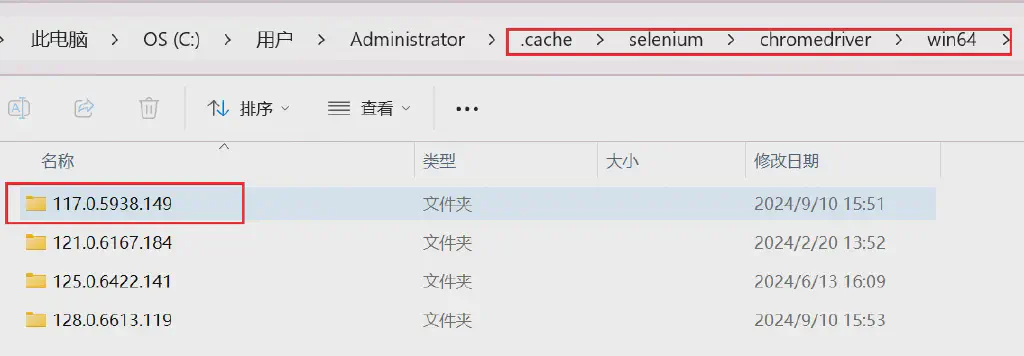
What Selenium calls here is the Selenium-manager command-line program

We can directly execute this program and add --help to see the supported parameters

 1
 2
 3
 4
 5
 6
 7
 8
 9
10
11
12
13
14
15
16
17
18
19
20
21
22
23
24
25
26
27
28
29
30
31
32
33
34
35
36
37
38
39
40
41
42
43
44
45
46
47
48
49
50
51
52
53
54
55
56
57
58
59
60
selenium-manager 0.4.24
Selenium Manager is a CLI tool that automatically manages the browser/driver infrastructure required by Selenium.


Usage: selenium-manager [OPTIONS]
Options:
      --browser <BROWSER>
          Browser name (chrome, firefox, edge, iexplorer, safari, safaritp, or webview2)
      --driver <DRIVER>
          Driver name (chromedriver, geckodriver, msedgedriver, IEDriverServer, or safaridriver)
      --grid [<GRID_VERSION>]
          Selenium Grid. If version is not provided, the latest version is downloaded
      --driver-version <DRIVER_VERSION>
          Driver version (e.g., 106.0.5249.61, 0.31.0, etc.)
      --browser-version <BROWSER_VERSION>
          Major browser version (e.g., 105, 106, etc. Also: beta, dev, canary -or nightly-, and esr -in Firefox- are accepted)
      --browser-path <BROWSER_PATH>
          Browser path (absolute) for browser version detection (e.g., /usr/bin/google-chrome, "/Applications/Google Chrome.app/Contents/MacOS/Google Chrome", "C:\Program Files\Google\Chrome\Application\chrome.exe")
      --driver-mirror-url <DRIVER_MIRROR_URL>
          Mirror for driver repositories (e.g., https://registry.npmmirror.com/-/binary/chromedriver/)
      --browser-mirror-url <BROWSER_MIRROR_URL>
          Mirror for browser repositories
      --output <OUTPUT>
          Output type: LOGGER (using INFO, WARN, etc.), JSON (custom JSON notation), SHELL (Unix-like), or MIXED (INFO, WARN, DEBUG, etc. to stderr and minimal JSON to stdout) [default: LOGGER]
      --os <OS>
          Operating system (i.e., windows, linux, or macos)
      --arch <ARCH>
          System architecture (i.e., x32, x64, or arm64)
      --proxy <PROXY>
          HTTP proxy for network connection (e.g., https://myproxy.net:8080)
      --timeout <TIMEOUT>
          Timeout for network requests (in seconds) [default: 300]
      --ttl <TTL>
          TTL (time-to-live) for discovered versions (online) of drivers and browsers [default: 3600]
      --cache-path <CACHE_PATH>
          Local folder used to store downloaded assets (drivers and browsers), local metadata, and configuration file [default: ~/.cache/selenium]
      --clear-cache
          Clear cache folder (~/.cache/selenium)
      --clear-metadata
          Clear metadata file (~/.cache/selenium/selenium-manager.json)
      --debug
          Display DEBUG messages
      --trace
          Display TRACE messages
      --log-level <LOG_LEVEL>
          Level for output messages. The possible values are: info, debug, trace, warn, error
      --offline
          Offline mode (i.e., disabling network requests and downloads)
      --force-browser-download
          Force to download browser (even when browser is already in the system)
      --avoid-browser-download
          Avoid to download browser (even when browser-version is specified)
      --language-binding <LANGUAGE_BINDING>
          Selenium language bindings that invokes Selenium Manager (e.g., Java, JavaScript, Python, DotNet, Ruby)
      --avoid-stats
          Avoid sends usage statistics to plausible.io
  -h, --help
          Print help
  -V, --version
          Print version

We can execute it to take a look at the output information here; actually, when selenium executes, it is precisely this command-line program that it calls

 1
 2
 3
 4
 5
 6
 7
 8
 9
10
11
12
13
14
15
16
17
18
19
20
21
22
23
24
25
26
27
28
29
30
31
32
33
34
35
36
37
38
39
40
41
>selenium-manager.exe --browser firefox --debug    # the debug parameter shows detailed output

[2024-09-10T13:35:56.007Z DEBUG] geckodriver not found in PATH

# First, determine whether a driver exists in the system PATH based on the specified browser

[2024-09-10T13:35:56.010Z DEBUG] firefox not found in PATH

# Likewise, based on whether the PATH contains the firefox browser installation path

[2024-09-10T13:35:56.010Z DEBUG] Running command: REG QUERY HKCU\Software\Mozilla\Mozilla Firefox /v CurrentVersion
[2024-09-10T13:35:56.034Z DEBUG] Output: ""
[2024-09-10T13:35:56.036Z DEBUG] firefox not found in the system

# Find the firefox browser installation path through the registry

[2024-09-10T13:35:56.037Z DEBUG] Required browser: firefox 130.0

-- No browser version specified; obtain the latest version based on online information

[2024-09-10T13:35:56.037Z DEBUG] Downloading firefox 130.0 from https://ftp.mozilla.org/pub/firefox/releases/130.0/win64/en-US/Firefox%20Setup%20130.0.exe

# Download from the official site

[2024-09-10T13:36:13.320Z DEBUG] firefox 130.0 is available at C:\Users\Administrator\.cache\selenium\firefox\win64\130.0\firefox.exe

# Download complete

[2024-09-10T13:36:14.367Z DEBUG] Valid geckodriver versions for firefox 130: ["0.35.0", "0.34.0"]

# Get available driver versions

[2024-09-10T13:36:14.369Z DEBUG] Required driver: geckodriver 0.35.0
[2024-09-10T13:36:14.372Z DEBUG] Downloading geckodriver 0.35.0 from https://github.com/mozilla/geckodriver/releases/download/v0.35.0/geckodriver-v0.35.0-win64.zip

# Download the corresponding driver

[2024-09-10T13:36:18.238Z INFO ] Driver path: C:\Users\Administrator\.cache\selenium\geckodriver\win64\0.35.0\geckodriver.exe
[2024-09-10T13:36:18.239Z INFO ] Browser path: C:\Users\Administrator\.cache\selenium\firefox\win64\130.0\firefox.exe

# Output the browser and driver paths; this is actually the information returned when selenium calls it

And besides Browser and Driver, Selenium-manager actually also supports downloading grid versions. Through the --grid parameter, the latest version of grid can be downloaded directly.

1
2
3
4
5
6
> selenium-manager.exe --grid --debug
[2024-09-10T13:47:41.793Z DEBUG] Sending stats to Plausible: Props { browser: "grid", browser_version: "", os: "windows", arch: "amd64", lang: "", selenium_version: "4.24" }
[2024-09-10T13:47:41.795Z DEBUG] grid not found in the system
[2024-09-10T13:47:43.667Z DEBUG] Required driver: selenium-server 4.24.0
[2024-09-10T13:47:43.669Z DEBUG] Downloading selenium-server 4.24.0 from https://github.com/SeleniumHQ/selenium/releases/download/selenium-4.24.0/selenium-server-4.24.0.jar
[2024-09-10T13:47:51.547Z INFO ] Driver path: C:\Users\Administrator\.cache\selenium\grid\4.24.0\selenium-server-4.24.0.jar

From the introduction above, it can be seen that by introducing Selenium-manager, Selenium can now, during environment preparation, very flexibly achieve automatic acquisition and configuration of resources such as the browser, the driver, and even the grid server, greatly improving the convenience of using Selenium.

Built with Hugo
Theme Stack designed by Jimmy